

Before you start
Open your Utari dashboard and confirm you are in the correct instance. From the bottom-left profile/workspace menu, open Instance Config. The setup tabs you will use in this guide are:- Branding
- Personality
- Messages
Branding
Open Branding when you need to control how the instance appears to members.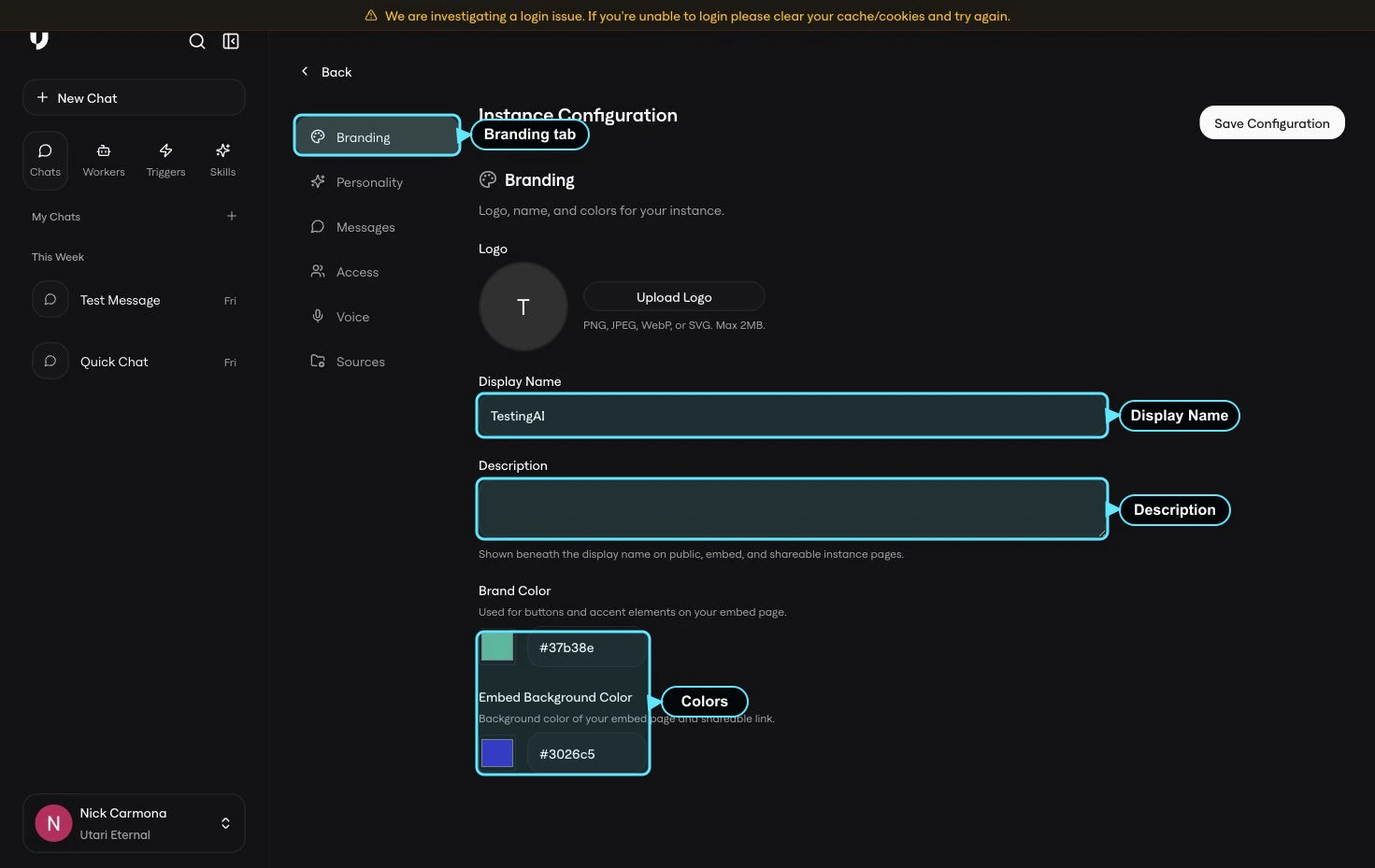
- Logo: the image shown for the instance when available.
- Display Name: the public name members recognize.
- Description: public copy shown under the instance name on public, embedded, and shareable instance pages.
- Brand Color: the accent color used for buttons and key interface elements.
- Embed Background Color: the background color used on the embedded or shareable experience.
Description
The Description field is important because it is public-facing profile and display copy. Write it as a short explanation of what the instance helps members do. Do not use internal setup notes, private customer details, or language that only your internal team understands. A strong description usually answers:- Who is this instance for?
- What does it help them with?
- What should they expect from the AI experience?
Personality
Open Personality when you need to control how the AI sounds, behaves, and follows style rules.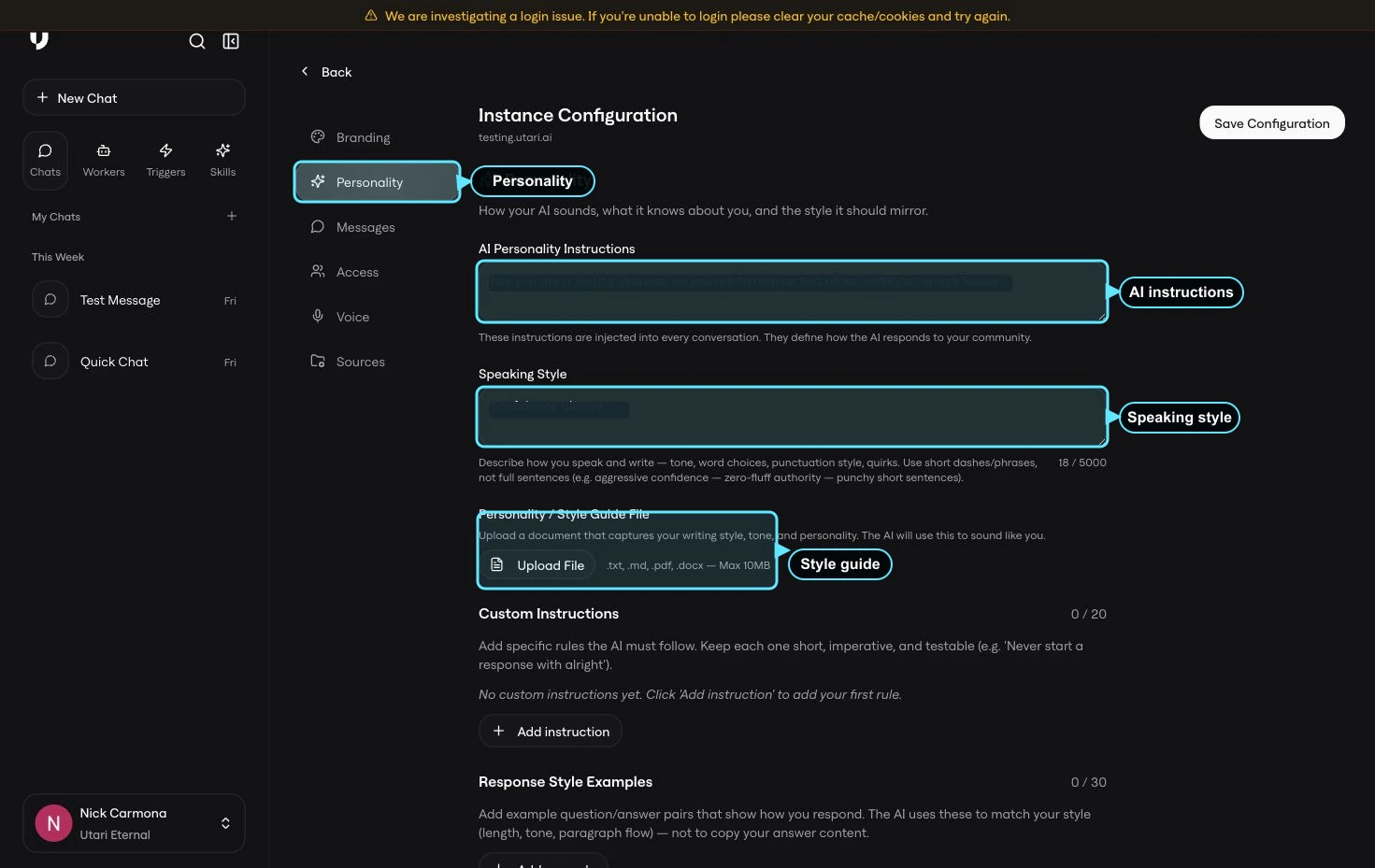
- AI Personality Instructions
- Speaking Style
- Personality / Style Guide File
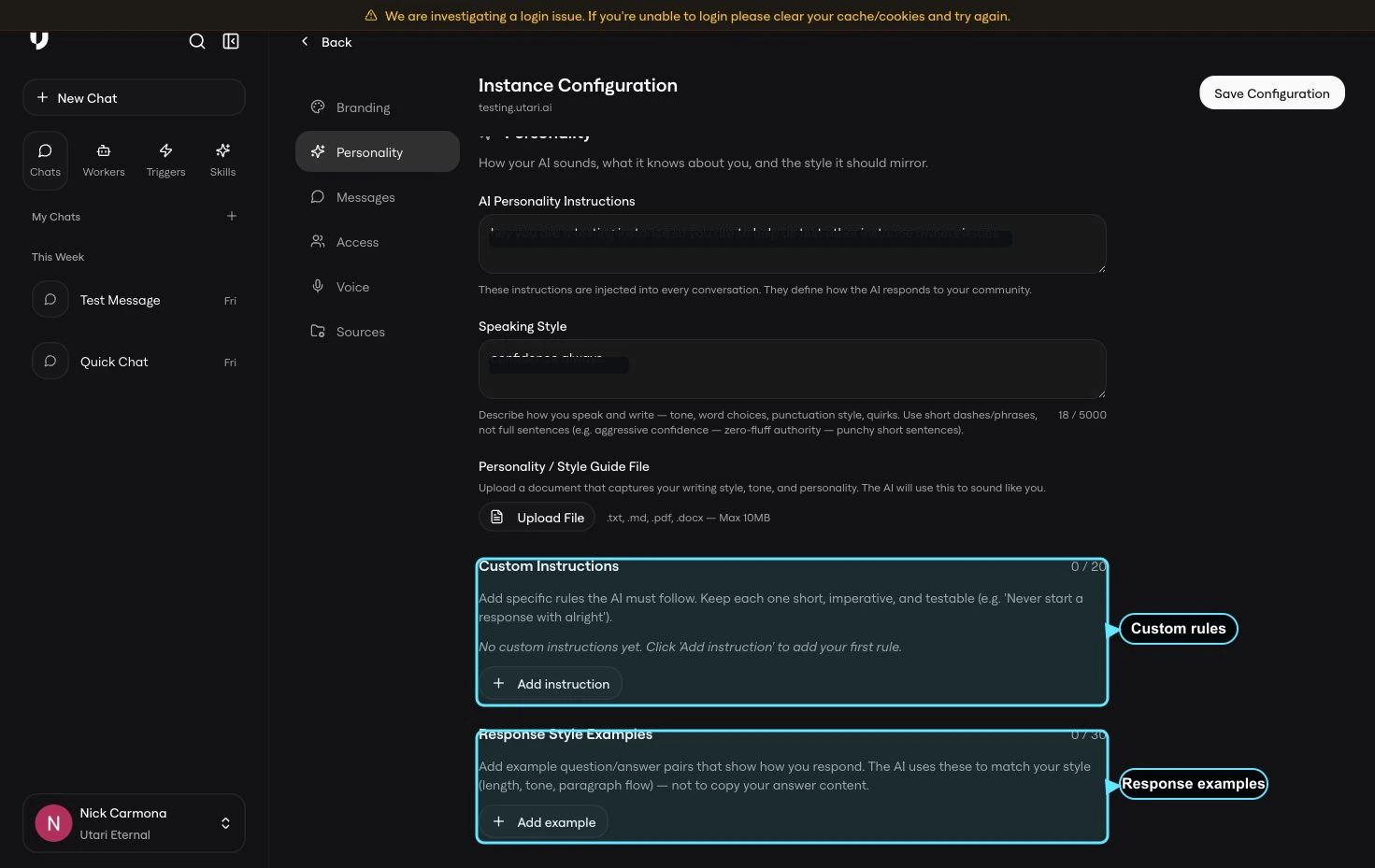
- Custom Instructions
- Response Style Examples
AI Personality Instructions
Use AI Personality Instructions for the high-level behavior the AI should follow in every conversation. This is where you define the overall role, tone, and operating style of the AI. Keep it clear enough that your team can review it and understand what the AI is being asked to do. Good instructions are specific, plain-English, and reusable across conversations.Speaking Style
Use Speaking Style to describe how the AI should sound. This should focus on tone, word choice, pacing, and formatting style. It should not be used for facts, policies, offers, pricing, or source material. For example, this is the right place to describe whether the AI should sound concise, direct, warm, casual, polished, or more detaiStyle Guide File Use the Personality / Style Guide File when you already have a document that captures the voice, tone, or writing style you want the AI to mirror. Accepted file types are shown in the interface and may include files like .txt, .md, .pdf, and .docx. Use this for style guidance only. If the document contains operational facts, training material, FAQs, or knowledge the AI needs to answer from, add that material through the Knowledge Base or Sources flow instead.Custom Instructions
Use Custom Instructions for specific rules the AI must follow. Each instruction should be short, direct, and testable. If your team cannot tell whether the AI followed the rule, rewrite it. Good custom instructions usually sound like:- “Ask one clarifying question before giving a recommendation.”
- “Use short paragraphs.”
- “Do not mention unsupported offers or features.”
- “Escalate to the team when the answer depends on account-specific details.”
Response Style Examples
Use Response Style Examples to show the AI what a good answer should look like. Examples should teach answer shape, tone, and formatting. They should not include private customer data or one-off internal notes. A good response example can show:- How long an answer should be
- How direct the AI should sound
- Whether the AI should use bullets or paragraphs
- How the AI should explain a decision
- How the AI should handle uncertainty
Personality vs. knowledge
Personality controls how the AI responds. Knowledge and Sources control what the AI knows. If the AI sounds wrong, update Personality. If the AI answers with missing, stale, or incorrect facts, update the Knowledge Base or Sources instead of adding more personality rules. This distinction matters because behavior rules cannot reliably fix missing source material.Messages
Open Messages when you need to control what the AI says when it cannot answer confidently.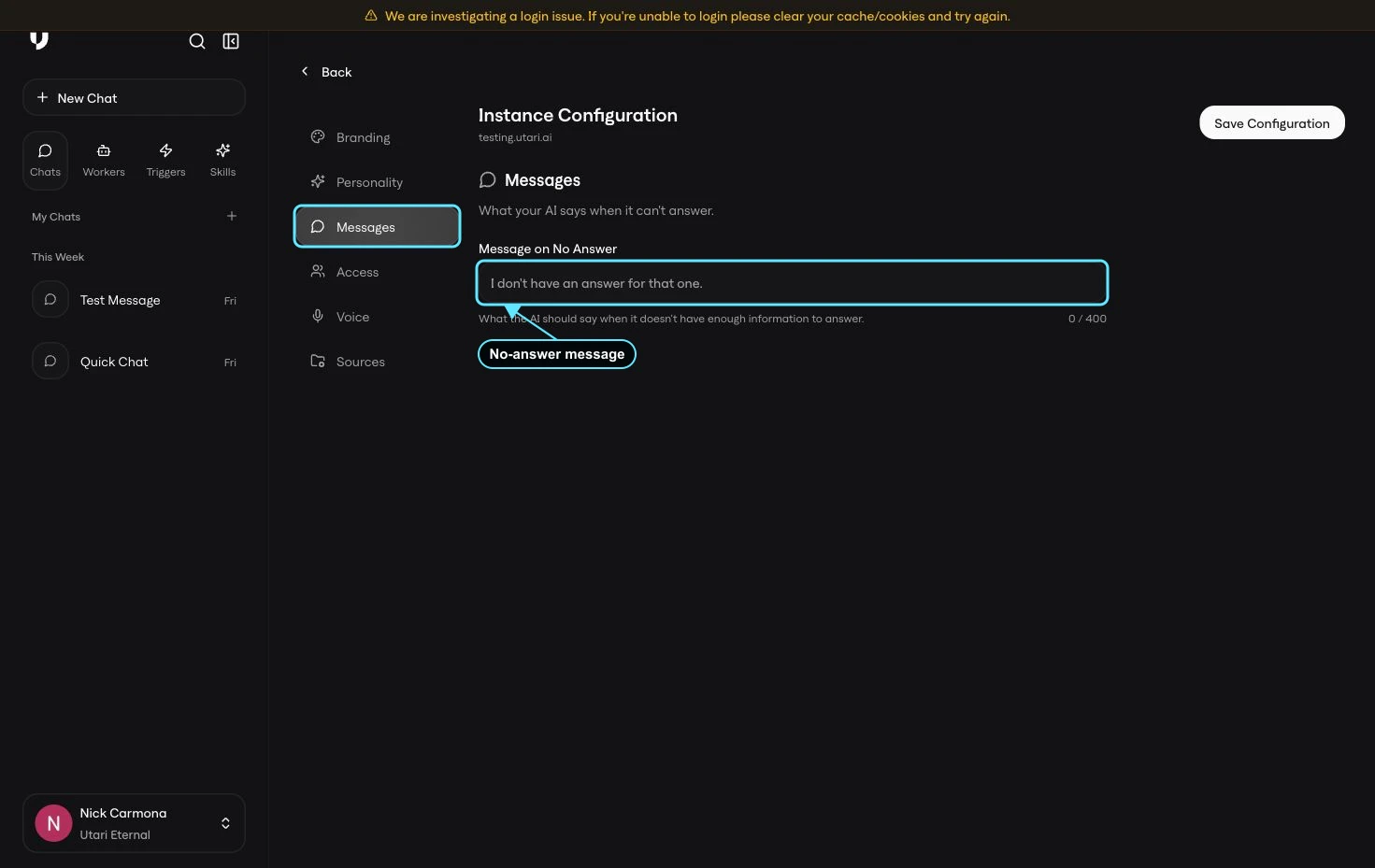
- Acknowledge that the AI does not have enough information
- Avoid guessing
- Tell the member what to do next
- Point to the correct support path when needed
I do not have enough information to answer that confidently. Please contact the team so they can help you with the right next step.
Save and test
After updating Branding, Personality, or Messages, click Save Configuration. Then test the experience in a normal chat. Ask the kind of questions a member would actually ask. Check for:- The instance name and description make sense
- The AI sounds like the intended brand or community voice
- The AI follows the main personality instructions
- The AI does not use behavior settings to invent missing facts
- The no-answer fallback appears when the AI cannot answer confidently
Common mistakes
Avoid these while setting up brand identity and AI behavior:- Do not put source material into Personality.
- Do not put tone instructions into Sources.
- Do not use internal-only language in the public Description.
- Do not paste private customer details into examples.
- Do not create custom instructions that are too vague to test.
- Do not save changes before the owner or approved team member has reviewed them.
Quick check
You are ready for the next guide when you can answer:- Where do you update the instance name and public description?
- Where does the Description appear?
- Which tab controls how the AI sounds?
- What is the difference between AI Personality Instructions and Speaking Style?
- When should you use a Style Guide File?
- What makes a good Custom Instruction?
- What should Response Style Examples teach?
- What should go in Message on No Answer?
- What belongs in Sources instead of Personality?