

Who this is for
This guide is for the instance owner and any owner-approved team member helping manage setup. The instance owner is responsible for setup decisions: what the instance looks like, what it should know, who can access it, what members are allowed to do, and which connected systems should be used. Community members use the normal member-facing instance experience. They do not have access to the owner setup areas covered in this guide.Before you change settings
Open your Utari dashboard and confirm you are in the correct instance. Check the workspace or instance name in the bottom-left profile area and in the owner menu. You can safely open menus, switch tabs, and review pages while learning the dashboard. Slow down before using buttons that apply a change, such as Save, Connect, Invite, Remove, Create, or Import. If a menu does not match this guide, or if you are unsure whether a change will affect members, contact hey@utari.ai before continuing.Dashboard home
The left sidebar is the daily workspace area. Use it when you are working inside the instance day to day.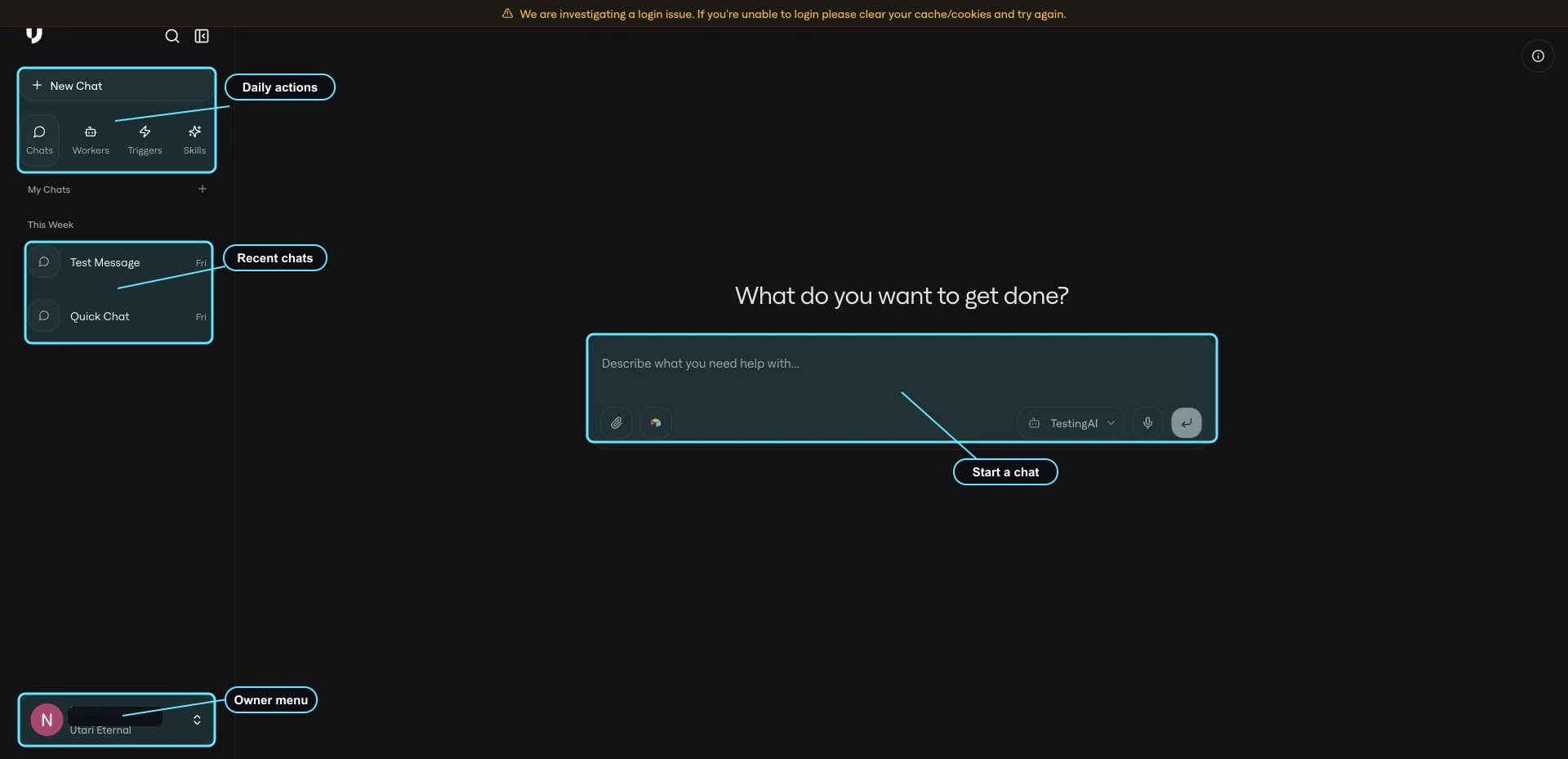
- New Chat: start a fresh conversation.
- Chats: reopen conversations inside the instance.
- Workers: use focused AI agents or workflows built for specific jobs.
- Triggers: manage automations when trigger access is enabled.
- Skills: browse reusable capabilities and instructions.
- My Chats: review recent conversations in the workspace.
- Owner menu: open owner setup and administration areas from the bottom-left profile/workspace menu.
Open the owner menu
Click the profile/workspace menu at the bottom-left of the sidebar.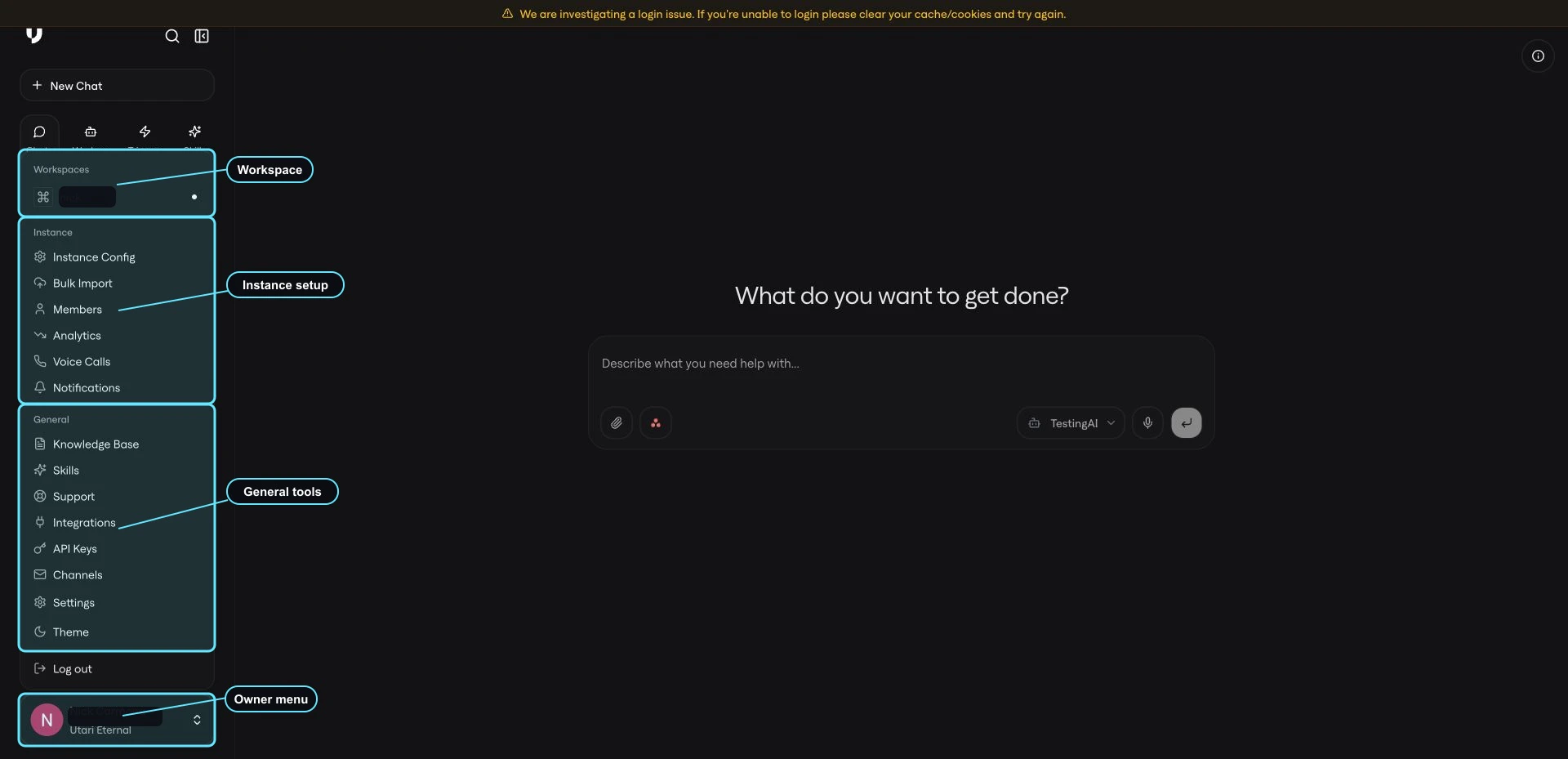
- Workspaces: shows the current workspace or instance context.
- Instance: setup and operating controls tied to this specific instance.
- General: shared tools and account-level areas.
- Log out: signs you out of the current account.
Instance menu
Use the Instance group for setup and operating controls tied to this specific instance. The Instance menu includes:- Instance Config: configure branding, personality, messages, access, voice, and sources.
- Bulk Import: bring in many files or URLs at once.
- Members: invite people, import a list, search members, resend invites, or remove access.
- Analytics: review usage, members, messages, token budget, and recent queries.
- Voice Calls: review or use voice calling when voice is available for the instance.
- Notifications: configure owner alerts and review delivery.
General menu
Use the General group for shared tools and account-level areas. The General menu includes:- Knowledge Base: review and organize searchable source material.
- Skills: browse skills that can support workers and workflows.
- Support: find support resources when available.
- Integrations: manage connected systems and account connections.
- Channels: configure external ways people can interact with workers, such as email, Telegram, or Slack.
- Settings: review available personal settings inside the instance context.
- Theme: adjust available appearance settings.
Settings and memory
Inside Settings, the cleaned instance-context settings list keeps account settings focused. Memory remains available when you need to review what the system remembers for your account.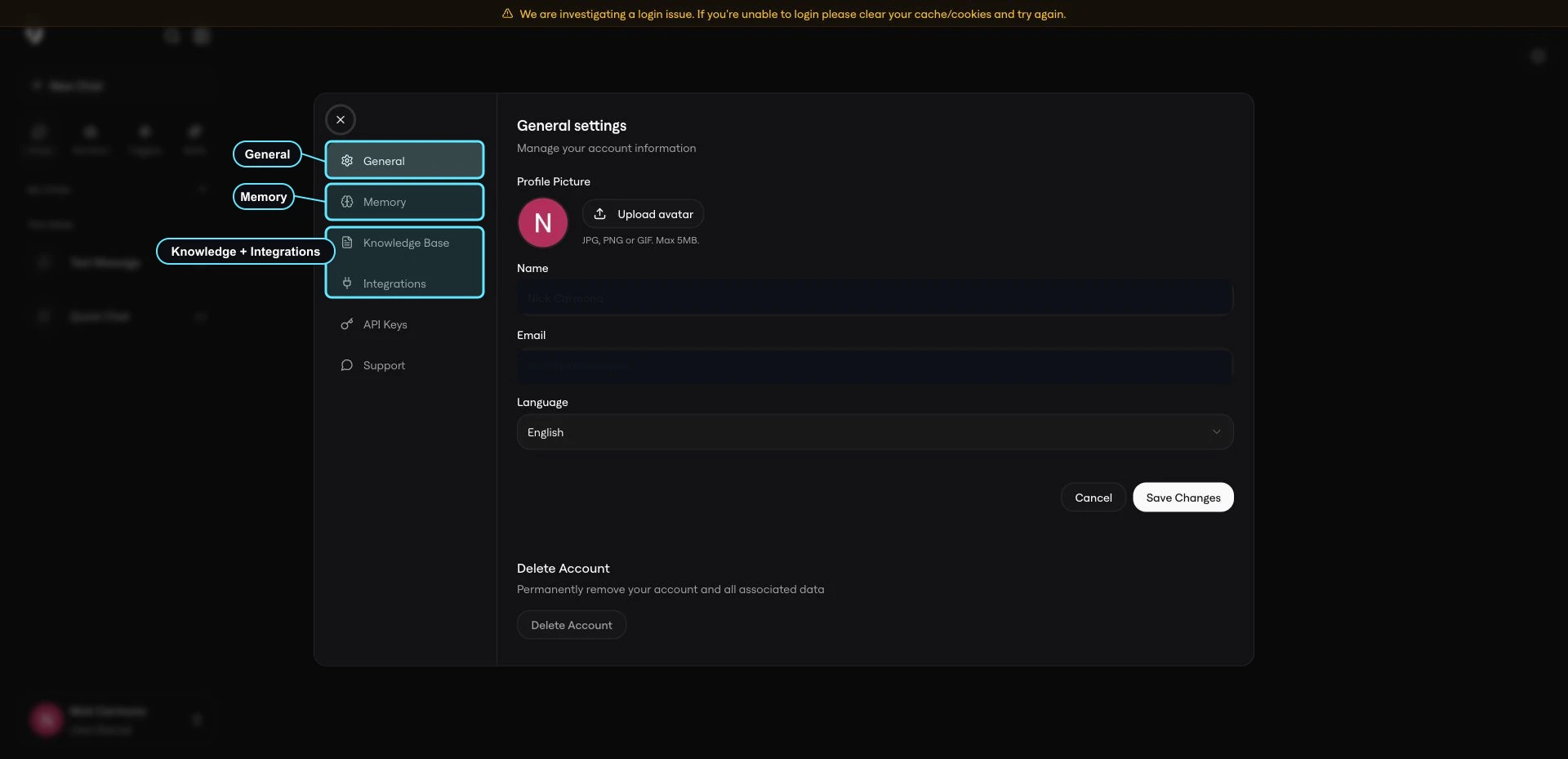
Where setup work lives
Use this map when you are deciding where to go next.Assign ownership
The owner does not need to manage every screen personally, but every area should have a clear owner.
In a real launch, the owner may understand the overall system while a trusted assistant, VA, or operator handles day-to-day setup work after the instance is live.
Usage at a glance
Use Analytics to monitor how the instance is being used after launch. Review usage regularly, watch for unusual spikes or repeated questions, and contact hey@utari.ai if usage looks higher than expected or if your team needs help understanding the numbers. The access, members, usage, and notifications guide covers analytics, member management, owner alerts, and the post-launch review rhythm in more detail.Safe setup habits
It is fine to look around before making changes. Open menus, read settings, and review pages first. Before saving, connecting, inviting, importing, removing, or enabling anything, make sure the action is intentional and owned by the right person. Only hand off owner-level setup work to a trusted team member who understands the area they are managing. If someone is only helping with uploads, member invites, or weekly review, keep their role focused on that area. If something looks wrong, capture what you see and email hey@utari.ai with the instance name, the page you were on, and what you expected to happen.Next guides
Continue through the rest of the instance owner setup guides:- Brand Identity and AI Behavior: branding, personality, style guidance, and no-answer messaging.
- Knowledge Base and Source Material: Knowledge Base, Sources, Google Drive, YouTube, and Bulk Import.
- Voice, Channels, and Integrations: voice setup, voice calls, external channels, and app credentials.
- Access, Members, Usage, Notifications, and Team Handoff: access mode, member invites, analytics, notifications, and launch operating rhythm.
Quick check
You are ready for the next guide when you can answer:- What is your Utari instance?
- What is the difference between an instance owner and a community member?
- How do you confirm you are in the correct instance?
- Where do you click to open owner-level settings?
- Which menu item opens branding, personality, messages, access, voice, and sources?
- Which menu item opens member invites and removals?
- Which menu item shows usage and recent queries?
- Which menu item opens external channels such as Slack or Telegram?
- Who owns knowledge updates, member access, analytics, notifications, integrations, and voice setup?
- Where do you go if the dashboard does not match this guide?