

How to use this guide
Use this guide to decide what is ready to turn on and what still needs owner approval, Utari support, or a connected account before members use it. A feature can appear in the dashboard before it is fully live for members, so review the setup requirements before enabling anything.What this guide covers
- Where voice setup lives.
- Why voice requires an uploaded and activated voice sample first.
- What the voice-call experience looks like once voice is active.
- Where Email, Telegram, Slack, and other channel setup lives.
- Where approved app credentials are managed.
- What connected-account details should stay private during setup.
Before you begin
Voice and channels can affect how people interact with your instance outside the dashboard. Integrations can affect which connected accounts workers or workflows can use. Only connect or create something when the owner and setup team know exactly what account, token, or workflow is being used. Treat bot tokens, app credentials, and access tokens like passwords. Keep them private, and only share them with the approved person handling that connection.Setup map
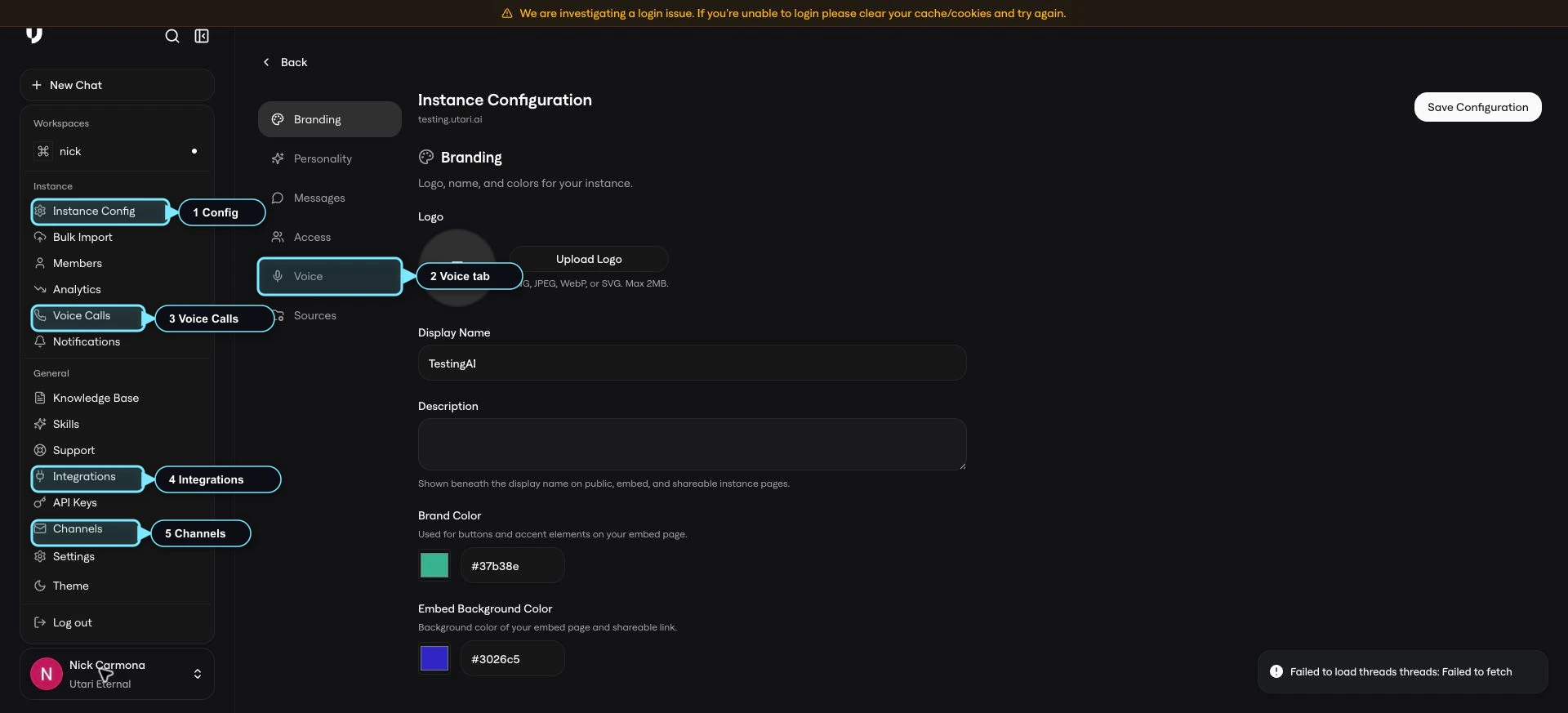
Open the profile or workspace menu at the bottom-left of the dashboard. For this SOP, the important areas are Instance Config > Voice, Voice Calls, Integrations, and Channels.- Use Instance Config > Voice to configure voice.
- Use Voice Calls to review or use the call experience once voice is active.
- Use Integrations / App Credentials for approved connected accounts that workers or workflows need permission to use.
- Use Channels for member-facing communication paths like Email, Telegram, or Slack.
Voice setup
Open Instance Config, then choose the Voice tab. Use this screen to configure voice before expecting the Voice Calls page or member-facing voice options to work.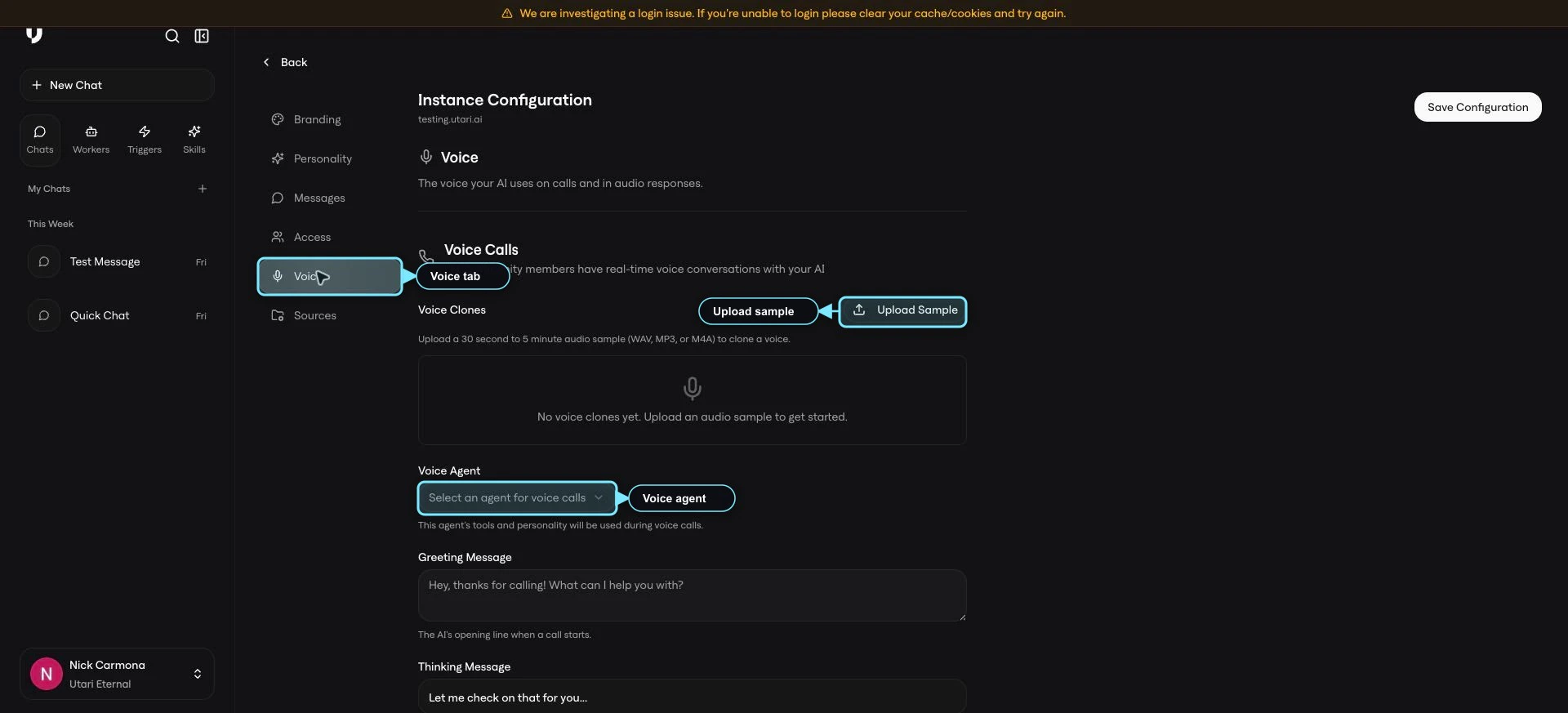
- Upload the voice sample.
- Wait for the voice clone to be available and activated.
- Choose the Voice Agent that should handle voice calls.
- Review the Greeting Message and Thinking Message.
- Save the configuration.
- Enable voice calls when the control becomes available.
- Test the voice-call experience before sending members to use it.
- Voice Clones: where the owner uploads a voice sample.
- Upload Sample: accepts a 30-second to 5-minute audio sample in WAV, MP3, or M4A. Use natural conversational audio with one speaker, a quiet room, consistent input level, and minimal background music, background noise, or cross-talk.
- Voice Agent: selects which agent will be used during voice calls. The selected agent controls the worker behavior, personality, and knowledge the voice call uses.
Voice messages and enabling voice calls
Scroll lower on the Voice tab to review the voice messages and enablement controls. Use Greeting Message for the AI’s opening line when a voice call starts. Use Thinking Message for the filler message played while the AI is processing during a voice call.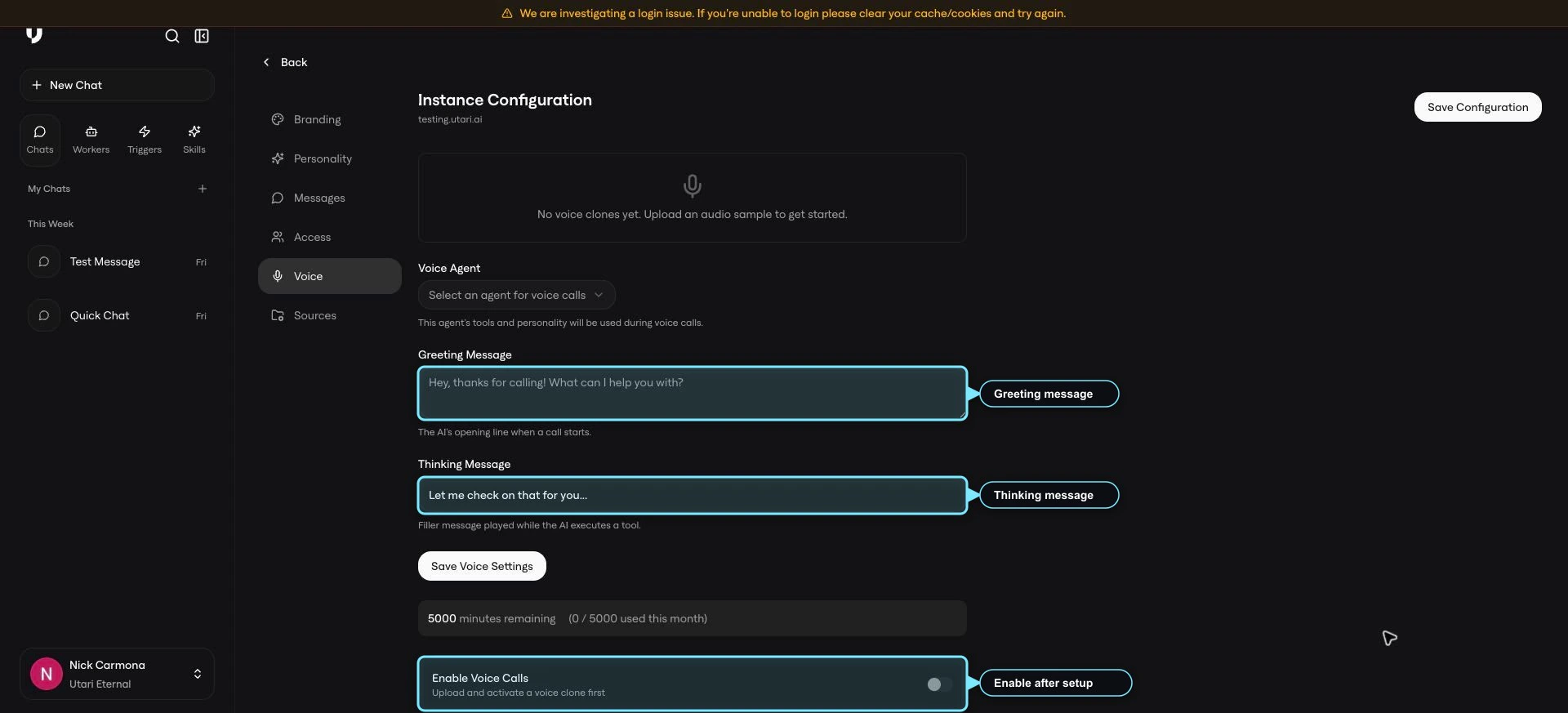
Voice Calls page
Open the profile or workspace menu, then choose Voice Calls. Review this page after the Voice tab setup has a sample uploaded, a voice clone activated, and a Voice Agent selected. If the page says voice calls are not set up, finish the voice sample and activation flow before testing voice calls or sending members to use voice.After the voice sample is active
Once a voice sample is uploaded and activated, the dashboard can show a New Voice Call option and a voice-call screen for the selected worker. The worker name, avatar, and available minutes may differ by instance. If the instance runs out of voice minutes, email hey@utari.ai to refill.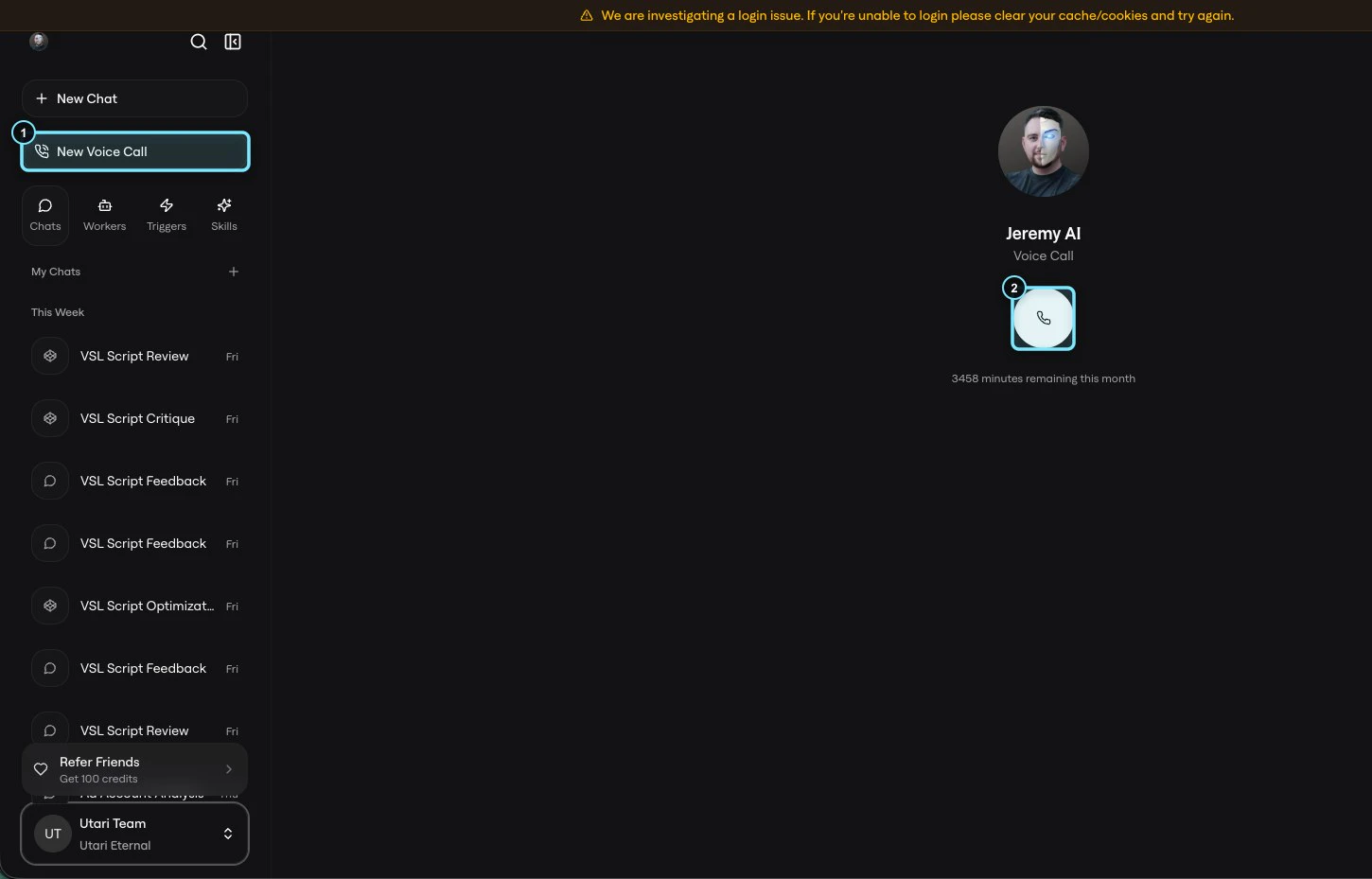
Channels
Open the profile or workspace menu, then choose Channels. Channels are the external places people can interact with workers. Use Channels for member-facing communication paths, not for general business app permissions.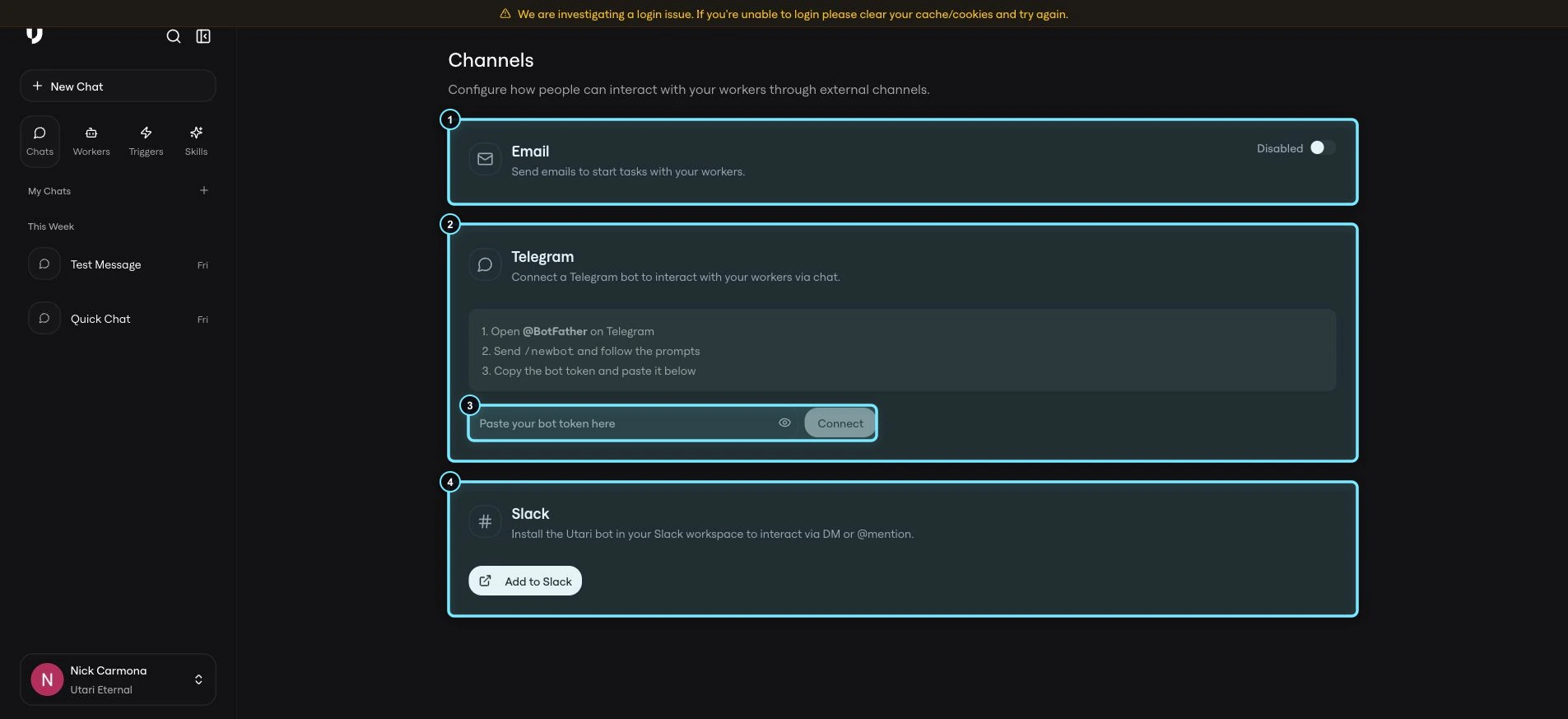
- Email: email channel option for the instance.
- Telegram: requires a Telegram bot token from BotFather.
- Slack: has an Add to Slack button for installing the Utari bot.
Integrations and app credentials
Open the profile or workspace menu, then choose Integrations. This opens App Credentials.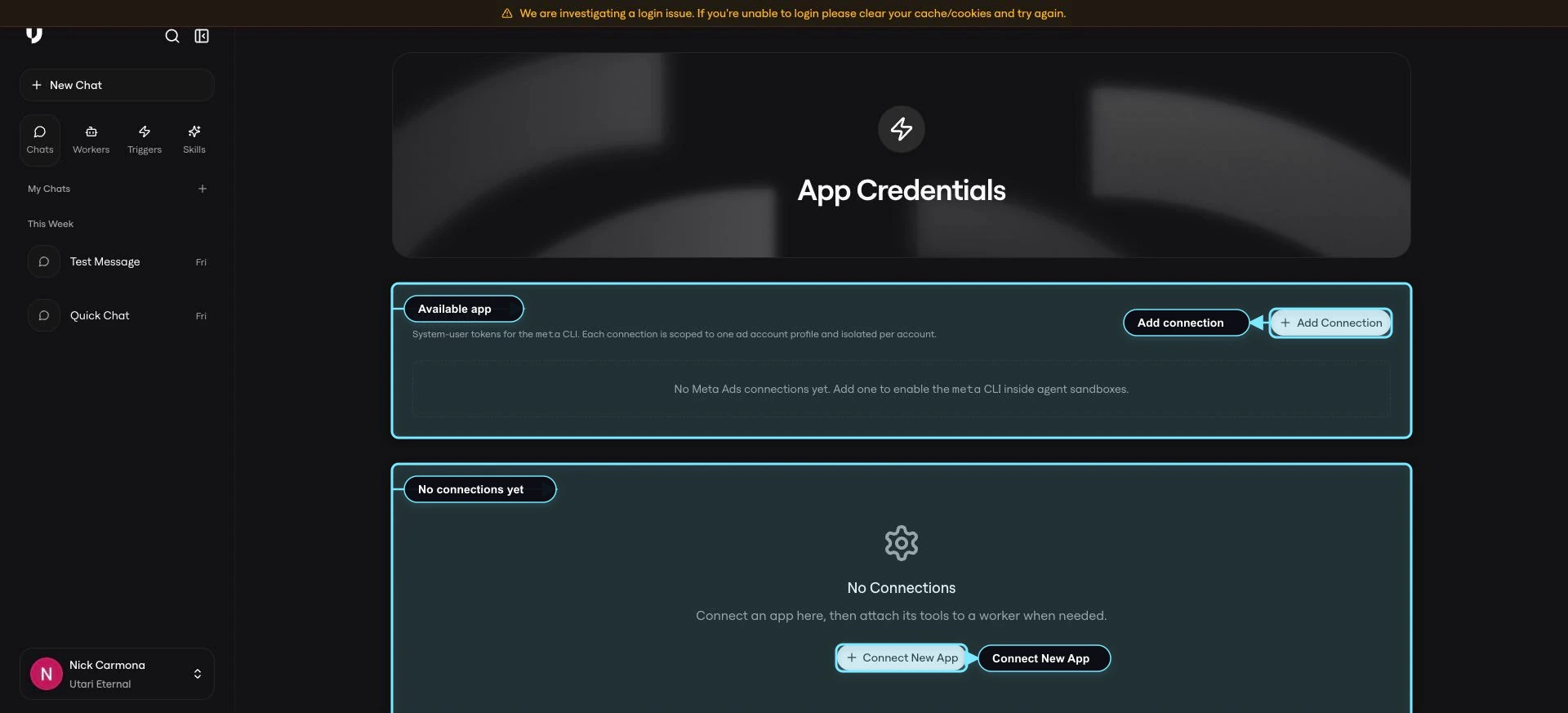
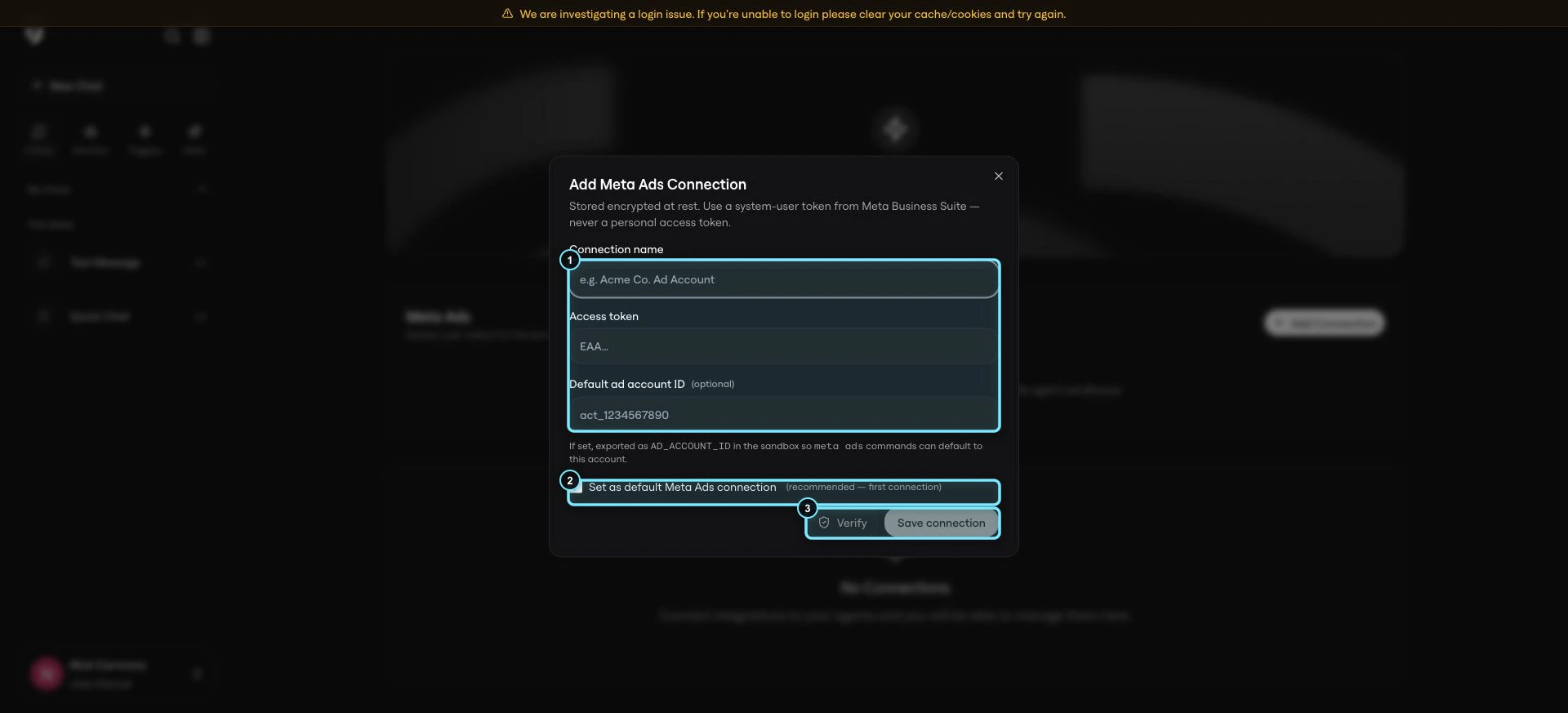
- Connection name
- Access token
- Default ad account ID
- Set as default Meta Ads connection
- Verify
- Save connection
Decide who is allowed to connect external systems
Before voice, channels, or app credentials are used broadly, decide who owns the setup and who is allowed to manage connected accounts, tokens, credentials, and external channels. Assign clear owners for:- Voice sample recording and upload.
- Voice agent selection.
- Voice greeting and thinking messages.
- Email, Telegram, or Slack setup.
- App credentials such as Meta Ads.
- Credential rotation and removal if access changes.
What to avoid
Do not share real bot tokens, app credentials, access tokens, or connected-account values with anyone who does not need them for the approved setup. Do not assume a channel is live just because it appears on the Channels page. A visible channel means it is available for setup; it still needs to be connected and tested. Do not expect voice chat or voice calls to appear until a voice sample has been uploaded and activated. Do not add app credentials unless there is a real setup plan and someone owns the credential afterward.Quick check
You are ready to move on when you can answer:- What is the order for making voice ready?
- What makes a usable voice sample?
- What does the selected Voice Agent control?
- Where do you review whether voice calls are set up?
- What appears once the voice sample is active?
- What should you do if voice minutes run out?
- Where do you connect Email, Telegram, or Slack?
- When should you use Channels instead of App Credentials?
- Where do you manage app credentials?
- Who on the team is allowed to manage, rotate, or remove tokens and credentials?