Documentation Index

Fetch the complete documentation index at: https://docs.utari.ai/llms.txt

Use this file to discover all available pages before exploring further.

This guide shows how to give your Utari instance the material it should learn from. It covers one-off uploads, bulk imports, connected sources, content priority, and when a knowledge file should become a reusable skill. Source material is what gives the AI something accurate to answer from. PDFs, Loom transcripts, YouTube content, approved instructions, prompts, training material, operating documents, and Google Docs all need to be organized before the AI can answer well. By the end, you should know which source flow to use, how to keep the Knowledge Base clean, how to connect Google Drive or YouTube for ongoing sync, and how to test whether the AI is using the material correctly.

How to use this guide

Use this guide to understand the difference between adding knowledge, organizing knowledge, and connecting ongoing sources. Do not add files only because they exist. Decide what belongs in the instance, where it should live, and whether it should be treated as ordinary knowledge, a style source, or a reusable skill.

Choose the right source flow

Use the source flow that matches the job you are trying to complete:
  • Add Knowledge: use this for one file, one pasted text note, one Google Doc, or one YouTube video.
  • Bulk Import: use this for many files or many URLs that need to be added at once.
  • Sources: use this for an ongoing connected Google Drive folder or YouTube channel. This is also where auto-sync comes from, because the instance can keep pulling from the connected source instead of only using a one-time upload.

Before you begin

Decide what material the AI should use before you upload or connect anything. Good source material is clear, current, and approved for the instance to reference. Good starting material usually includes:
  • FAQs
  • Finalized SOPs
  • Training documents
  • Transcripts
  • Approved Google Docs
  • Product or service information
  • Sales material
  • Policies
  • YouTube content the AI should be allowed to learn from
A clean starting folder structure might include:
  • Company Info
  • Offers / Services
  • FAQs
  • Training Material
  • Voice / Style Examples
  • Policies / Operations
Keep upload structure simple: Folder -> File. Do not rely on nested folders like Folder -> Subfolder -> File. Nested folder structures will not be read or parsed correctly, so files should live directly inside the selected knowledge folder. Avoid uploading draft, outdated, or private material unless you are certain it should be used in answers.

Setup map

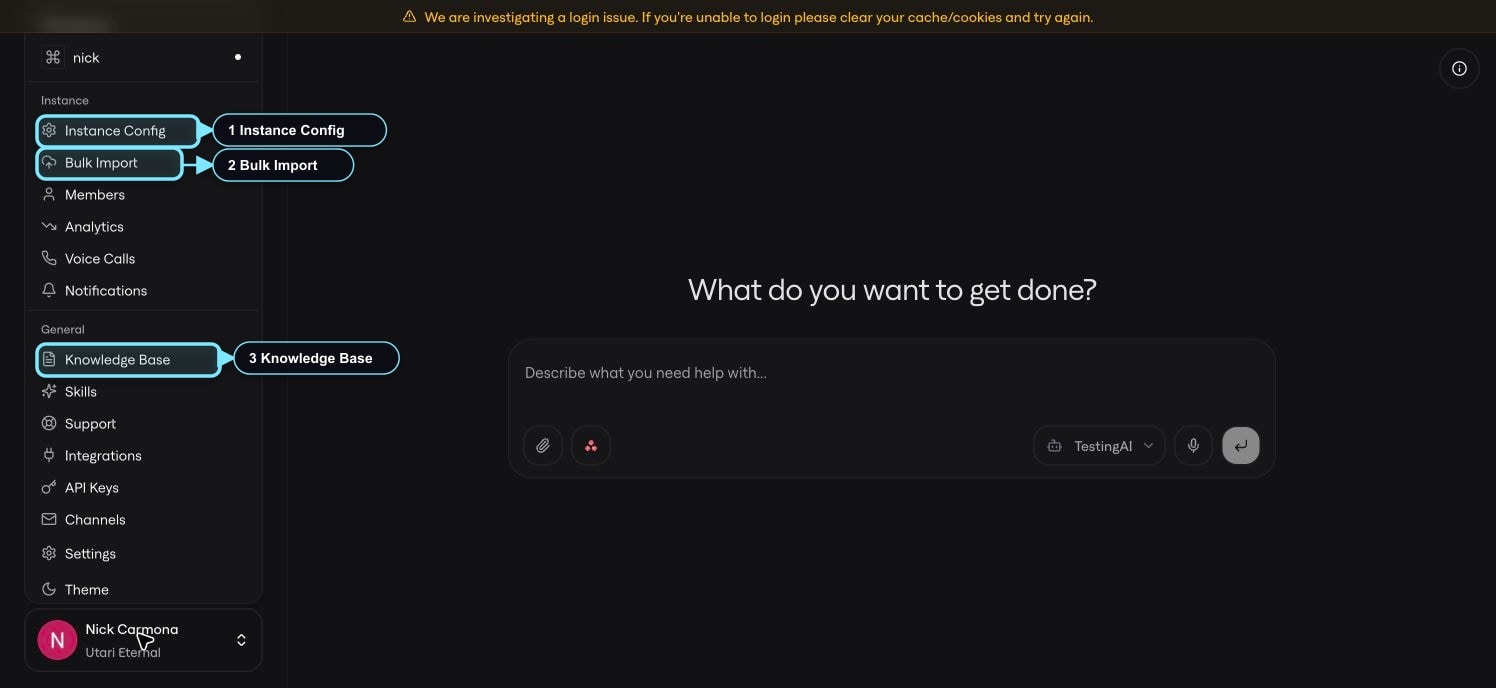
For this guide, the important areas are Knowledge Base, Bulk Import, and the Sources tab inside Instance Config. Open Knowledge Base from the General group in the profile/workspace menu. Open Bulk Import from the Instance group. Open Sources from Instance Config. Use Knowledge Base for stored materials, Bulk Import for larger uploads, and Sources for connected Google Drive or YouTube material that should stay connected through sync.
01 Setup Map Owner Menu

Knowledge Base

Open the profile/workspace menu at the bottom-left of the dashboard, then choose Knowledge Base from the General group.
02 Knowledge Base
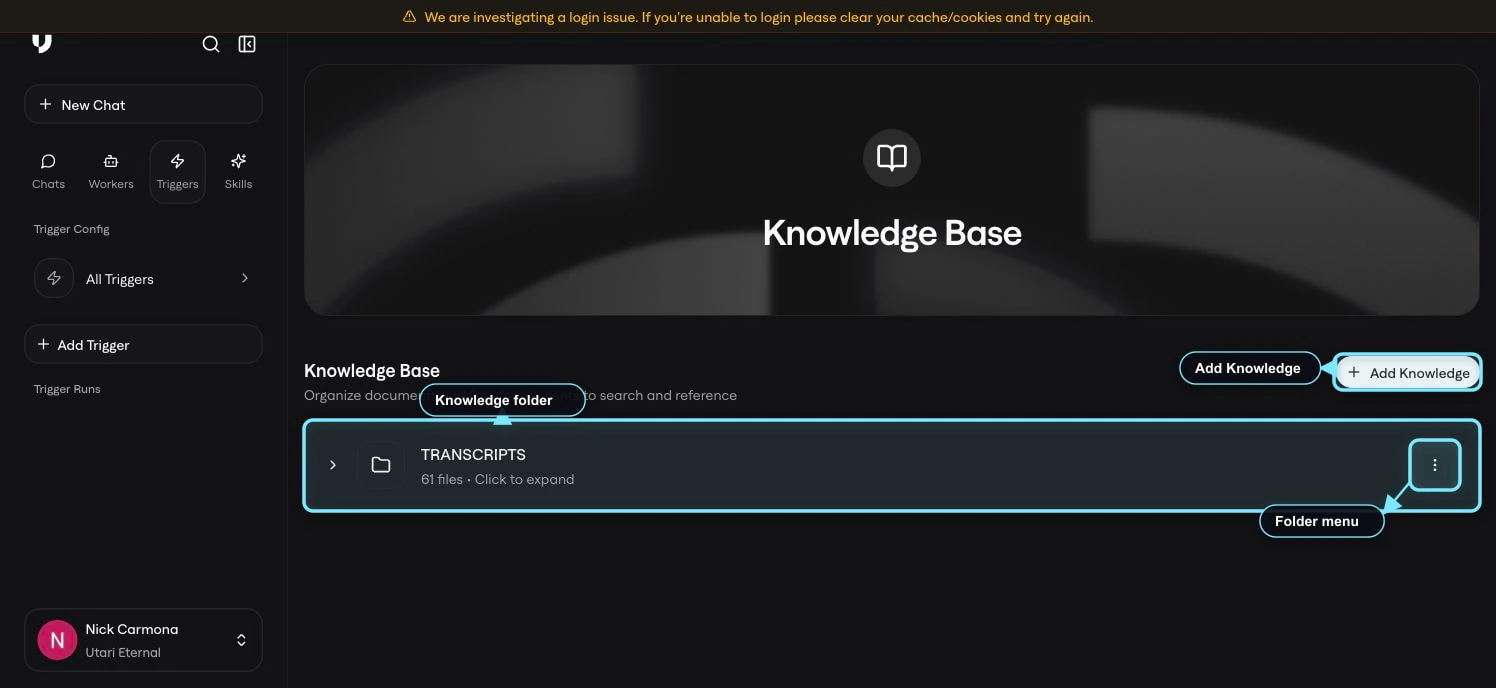
The Knowledge Base is where your instance’s searchable materials are organized. The page shows folders, an Add Knowledge button, and a three-dot action menu next to each folder. Folders help keep source material grouped by topic, use case, department, content type, or operating area. Expand a folder when you need to review what is already inside it. Knowledge Base content is stored inside Utari. Sources are connected external places, like a Google Drive folder or YouTube channel, that Utari can sync from. Use Add Knowledge when you want to add one specific item. Use Sources when you want the instance connected to an ongoing folder or channel.

Folder actions and content priority

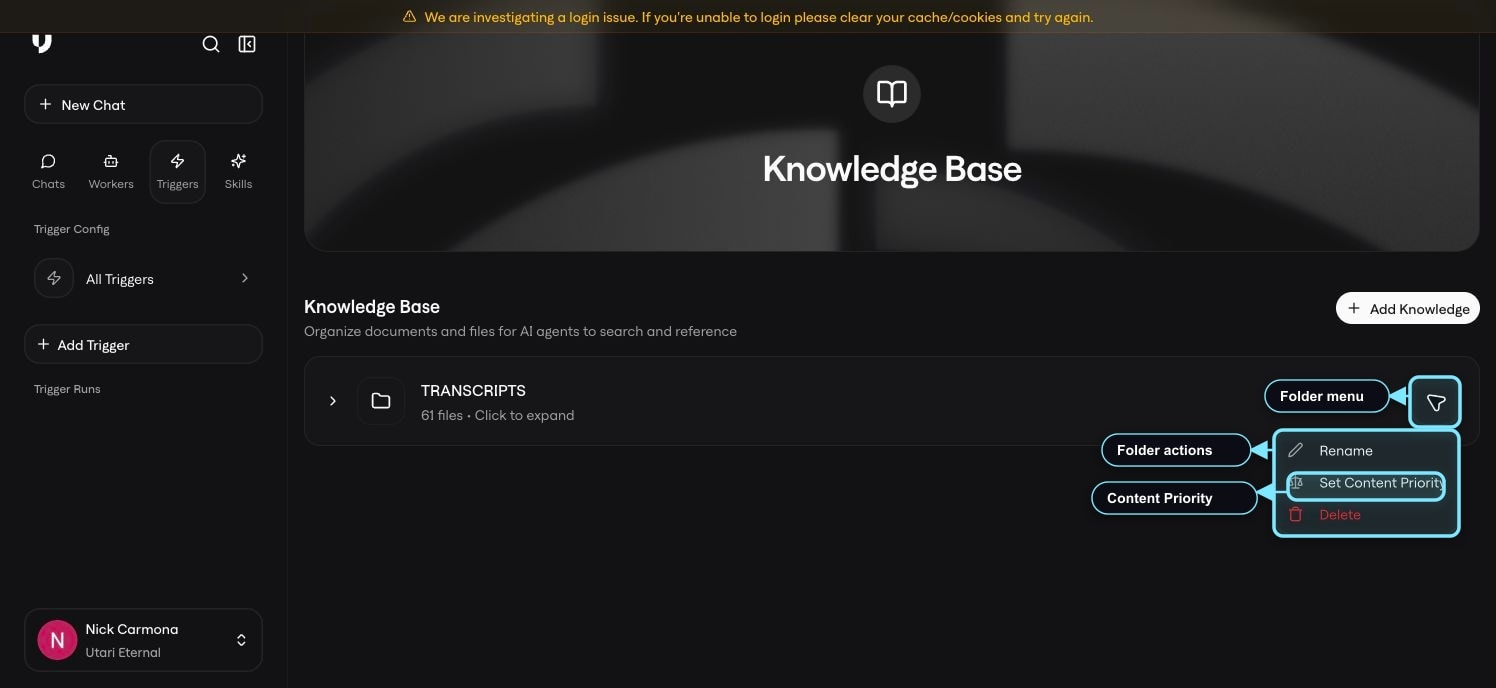
Click the three-dot menu next to a folder when you need to manage the folder itself.
03 Folder Actions Menu
The folder action menu currently includes:
  • Rename: update the folder name.
  • Set Content Priority: tell Utari how the files in that folder should be treated.
  • Delete: remove the folder when it should no longer be used.
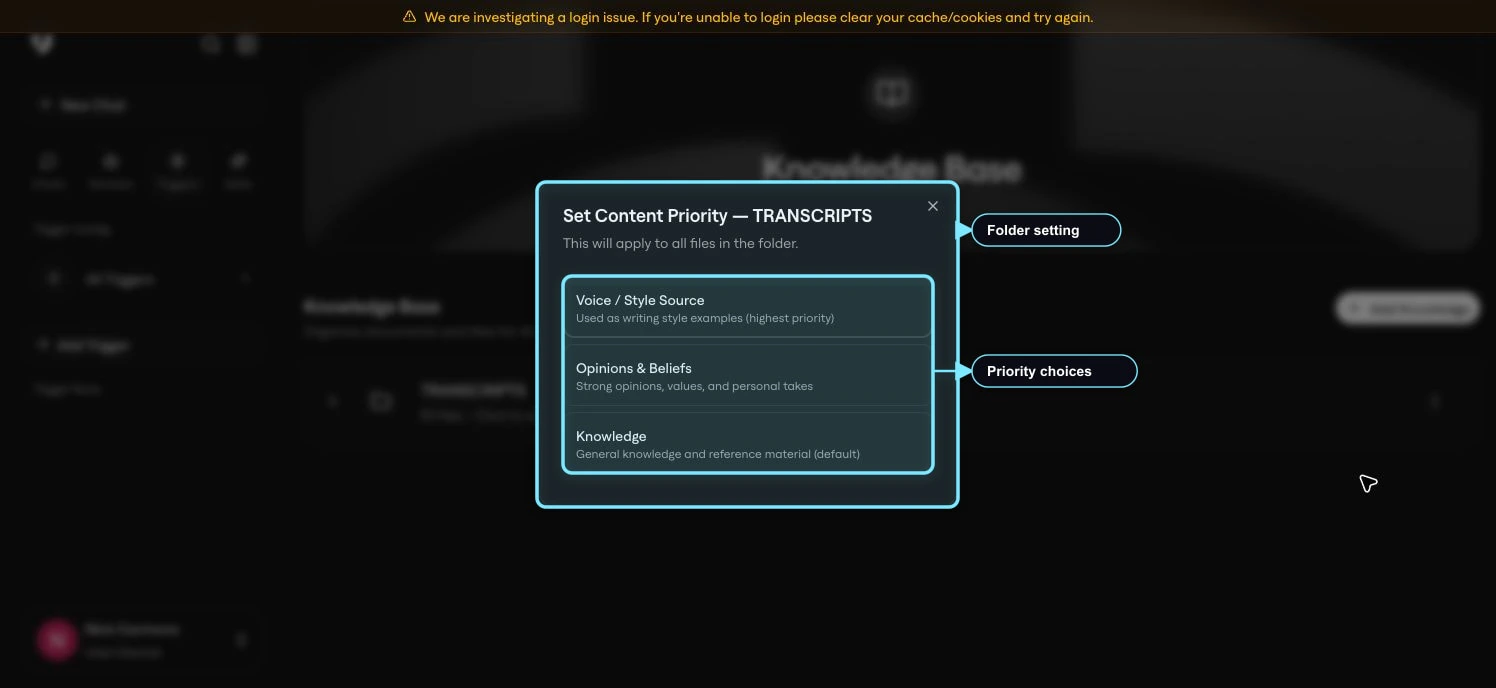
Use Set Content Priority when the material in the folder has a specific job in how the AI should respond.
04 Content Priority Modal
The current content priority options are:
  • Knowledge: use this for general reference material such as FAQs, product information, training docs, SOPs, and policies. This is the default for ordinary knowledge base content.
  • Voice / Style Source: use this when the folder contains writing samples, tone examples, or style references the AI should mirror.
  • Opinions & Beliefs: use this when the folder contains strong takes, values, positioning, or judgment calls the AI should understand.
Do not set every folder to the highest-priority style setting. Use the priority that matches what the material is actually supposed to do. SOP 2’s Personality / Style Guide File is the primary place to control how the AI sounds and behaves. SOP 3’s Voice / Style Source priority is for supporting reference materials, such as writing samples or tone examples, that should live in the knowledge layer.

Review files inside a folder

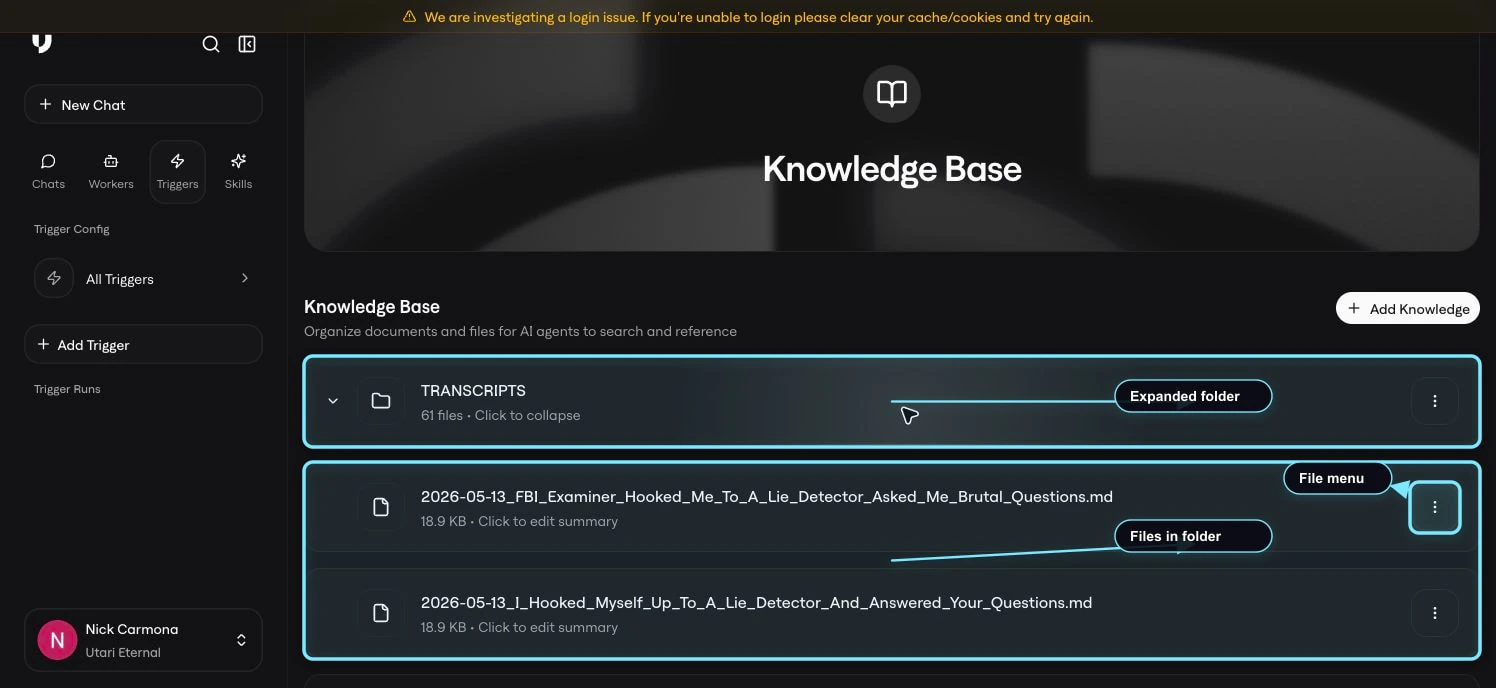
Click a folder row to expand it and review the files inside.
05 Folder Expanded Files
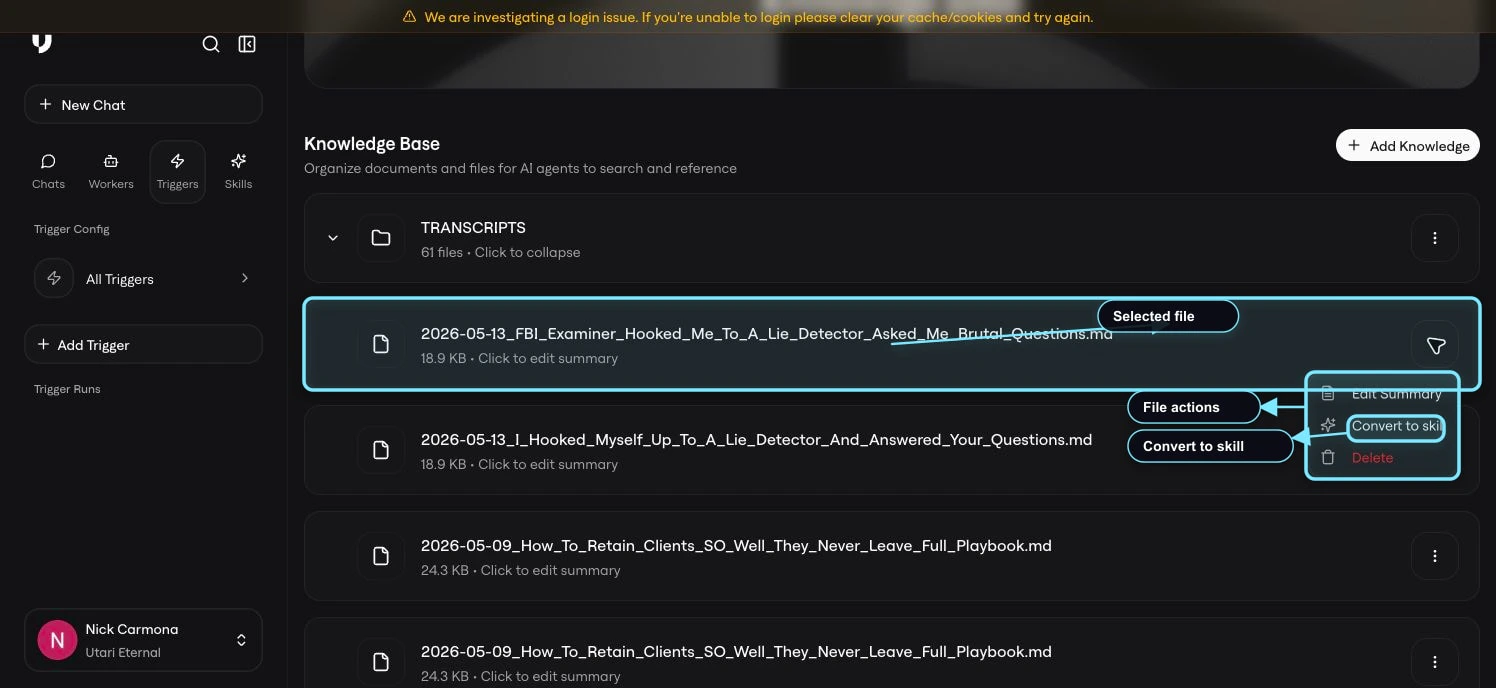
Inside a folder, each file row shows the file name, file size, summary-edit hint, and a three-dot action menu. Use this view when you need to confirm what material the instance already has before adding more. Click the three-dot menu next to a specific file when you need to manage that file.
06 File Actions Menu
The file action menu currently includes:
  • Edit Summary: update the summary Utari uses to understand what the file is about.
  • Convert to skill: turn a specific knowledge file into a reusable Skill when the content should become repeatable worker instructions or operating behavior.
  • Delete: remove the file from the knowledge base.
Skills are created from individual files, not entire folders. Use Convert to skill only when that file is procedural enough to become a reusable workflow, instruction set, or operating behavior. Do not convert every knowledge file into a skill. Reference material belongs in the Knowledge Base. Repeatable instructions, frameworks, or workflows may belong as a Skill.

Add Knowledge

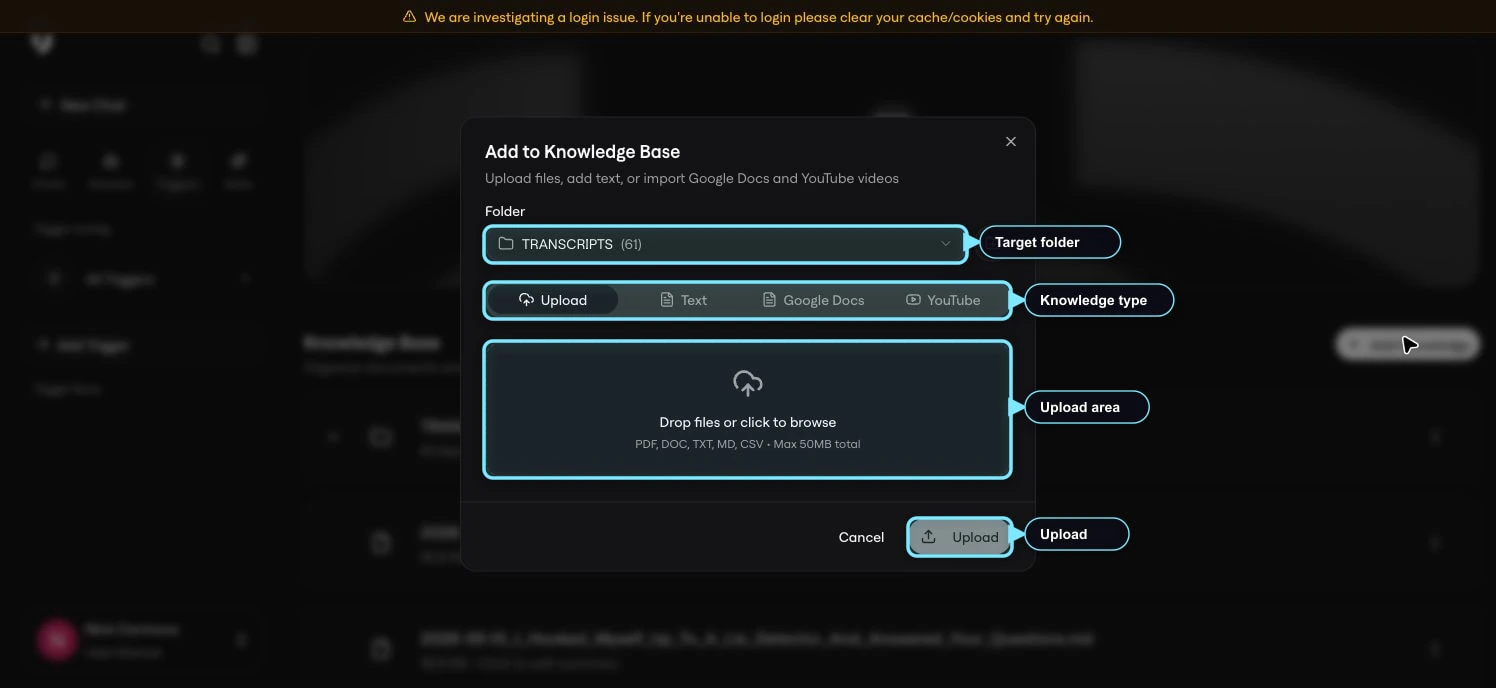
Click Add Knowledge when you want to add one new item to the Knowledge Base.
07 Add Knowledge Modal
The current Add to Knowledge Base modal lets you choose the destination folder and then add material through:
  • Upload: for a file you already have.
  • Text: for a direct note or written source you want to paste in.
  • Google Docs: when the source material lives in a Google Doc.
  • YouTube: when the source is a video the instance should learn from.
If you add a Google Doc by URL, make sure the Google Doc sharing permission is set to Anyone with the link can view before adding it. If the document is private or restricted to specific people, Utari may not be able to read it. Choose the target folder before adding the material so the Knowledge Base stays organized. Add Knowledge is a one-time addition. Use Sources when you want an ongoing connected folder or channel.

Bulk Import

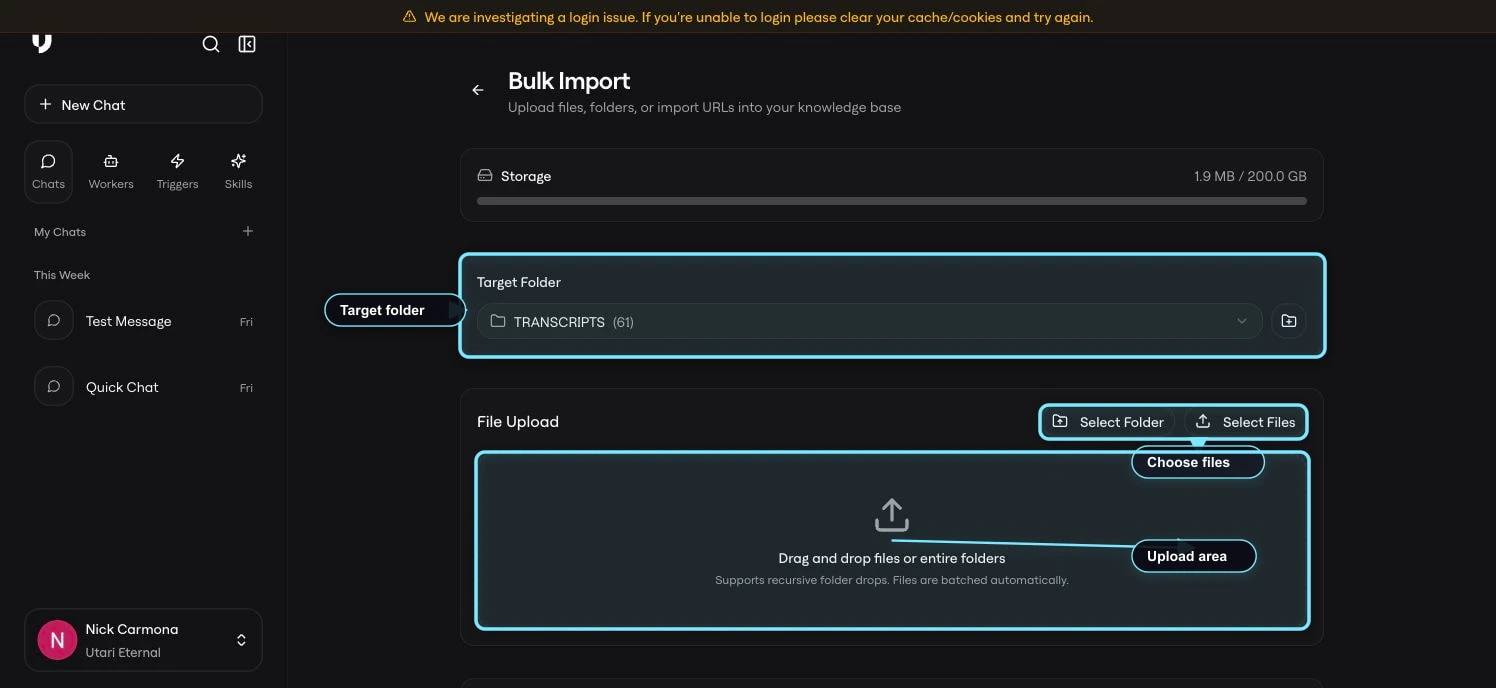
Open the profile/workspace menu at the bottom-left, then choose Bulk Import from the Instance group.
08 Bulk Import Top
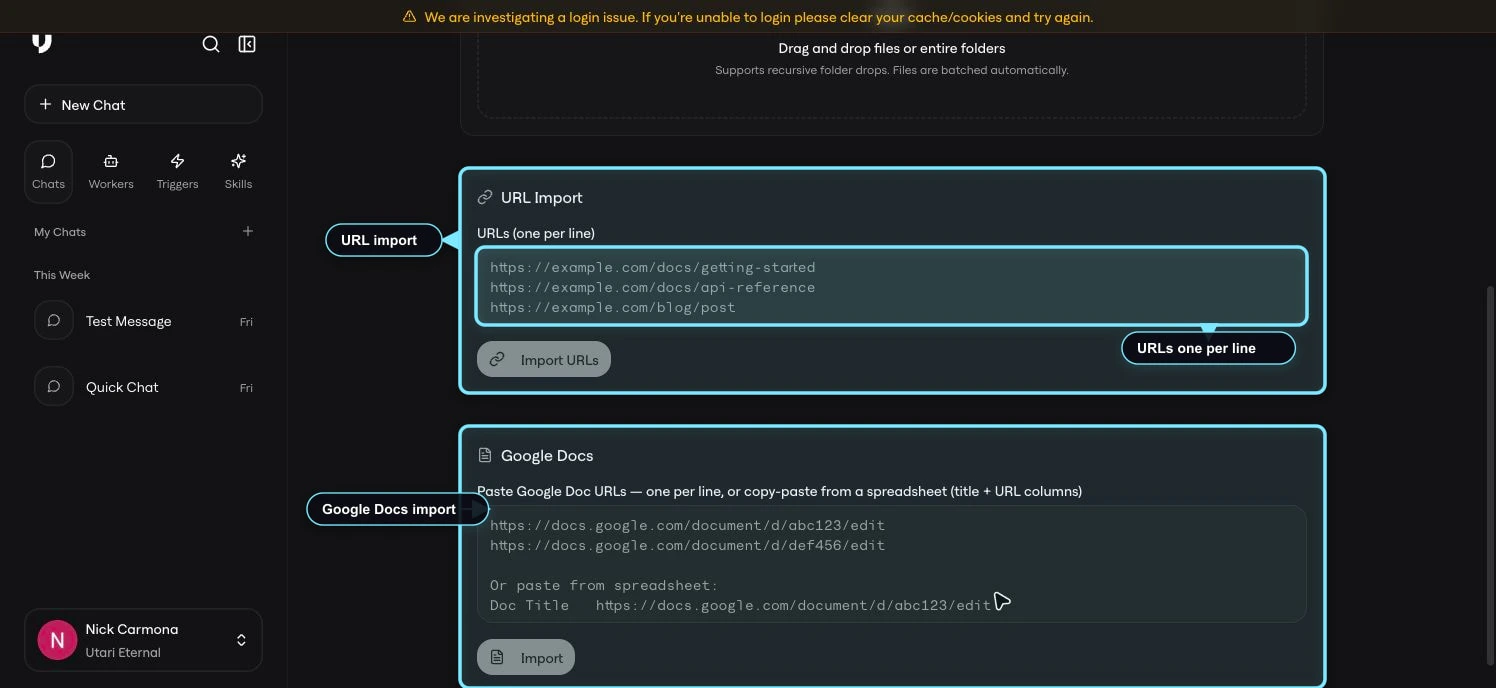
Use Bulk Import when you have multiple files, folders, or URLs to bring into the Knowledge Base at once. The current Bulk Import screen includes:
  • Storage usage
  • Target Folder
  • File Upload
  • Select Folder
  • Select Files
  • URL Import
  • URLs, one per line
  • Import URLs
Choose the target folder before importing so the material stays organized. A target folder must be selected before the flow will continue. Use Select Folder only when the files are directly inside the folder you choose. If the material is inside subfolders, flatten the folder first so the upload structure is Folder -> File. Use Select Files when you want to choose specific files. Use URL Import when you have a list of web pages or links to bring in. Put one URL per line. Bulk Import can process up to 50 URLs at a time. If you have more than 50 URLs, import the first batch, clear the URL list, add the next batch, and import again.
09 Bulk Import Url Docs
If you are importing Google Doc URLs, the documents need to be shared as Anyone with the link can view before import. If you are importing many YouTube transcripts or long-form source pages, use Bulk Import when you already have the transcript or document URLs ready.

Sources

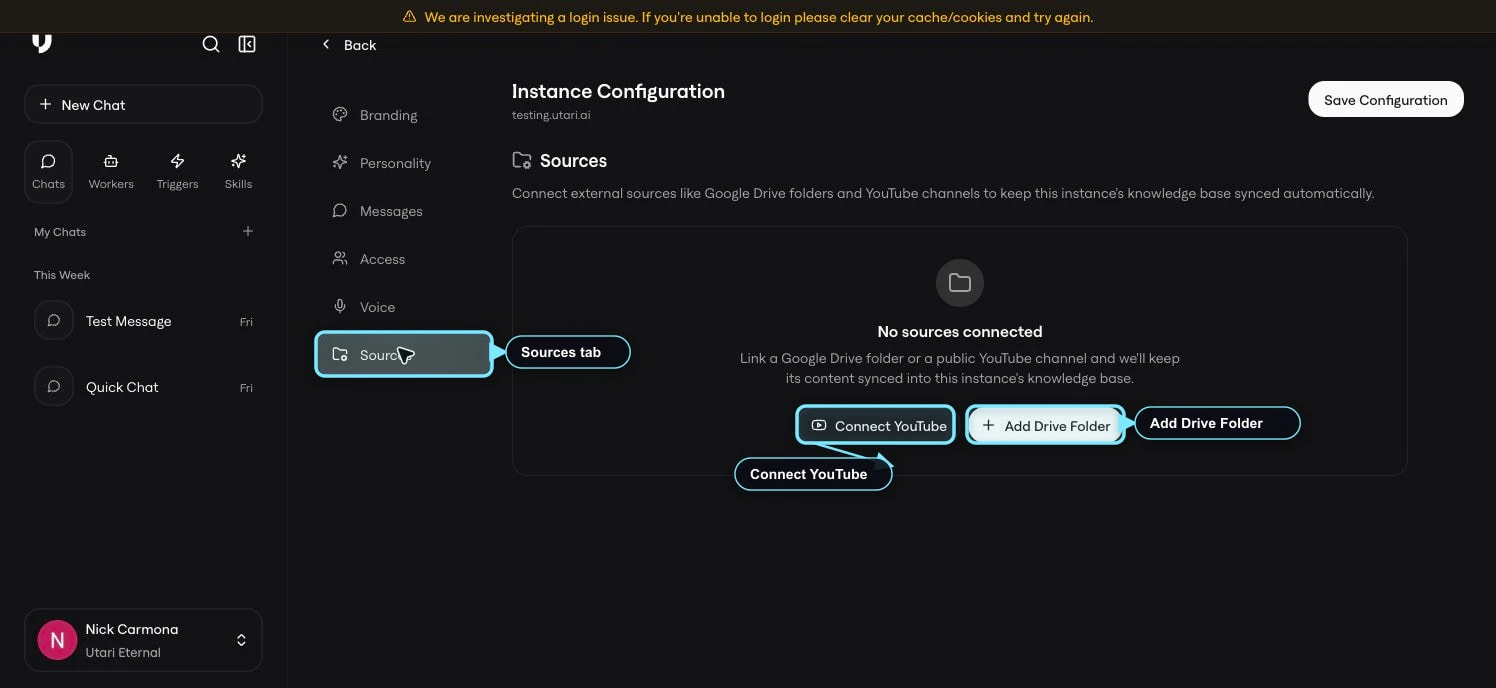
Open Instance Config, then choose the Sources tab.
10 Sources Overview
Use Sources for ongoing connected Google Drive folders or YouTube channels. Sources are different from one-time uploads because they are meant to stay connected through sync. This is the right place when the owner wants approved source material to keep updating from a connected folder or channel. The current Sources screen includes:
  • Add Drive Folder
  • Connect YouTube
  • The connected sources list
Use Sources when the source should keep syncing. Use Add Knowledge or Bulk Import when the material is a one-time upload.

Google Drive source

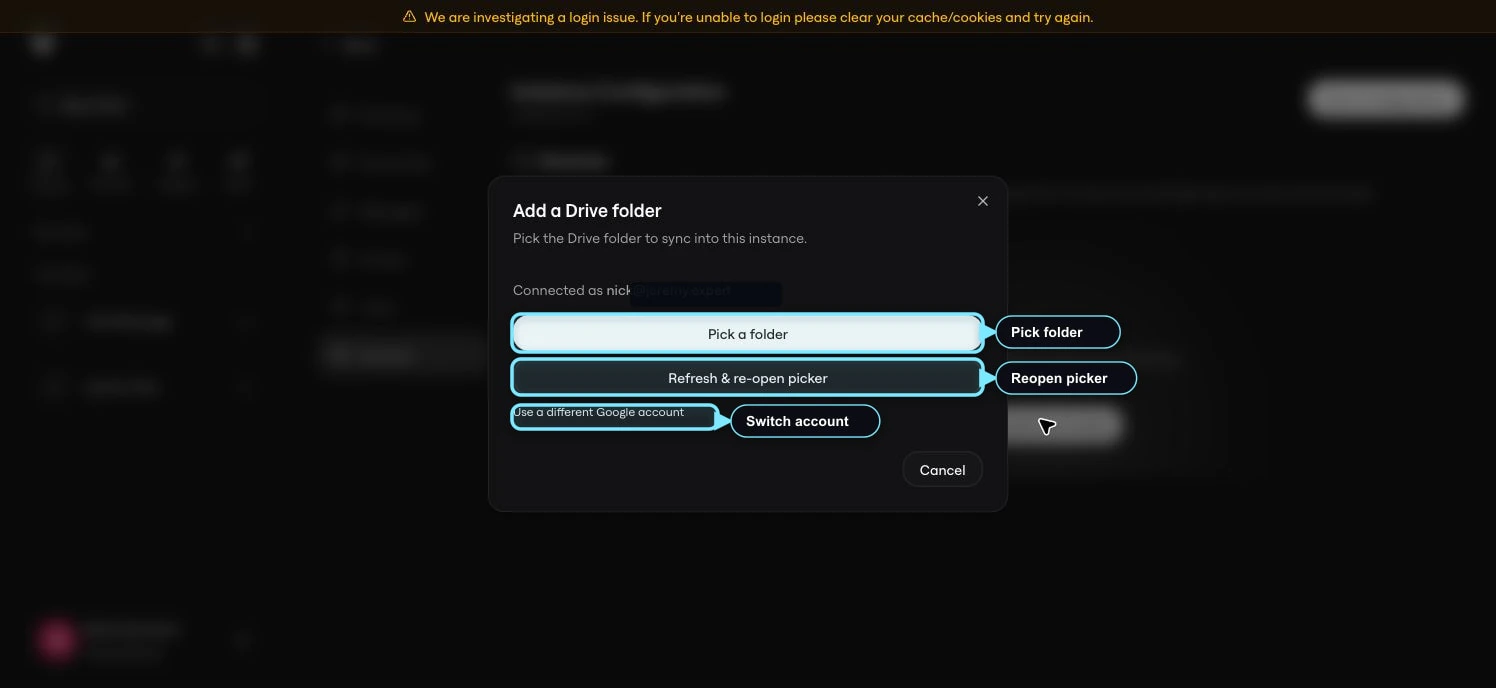
Click Add Drive Folder when you want to connect an ongoing Google Drive folder.
11 Drive Add Folder Modal
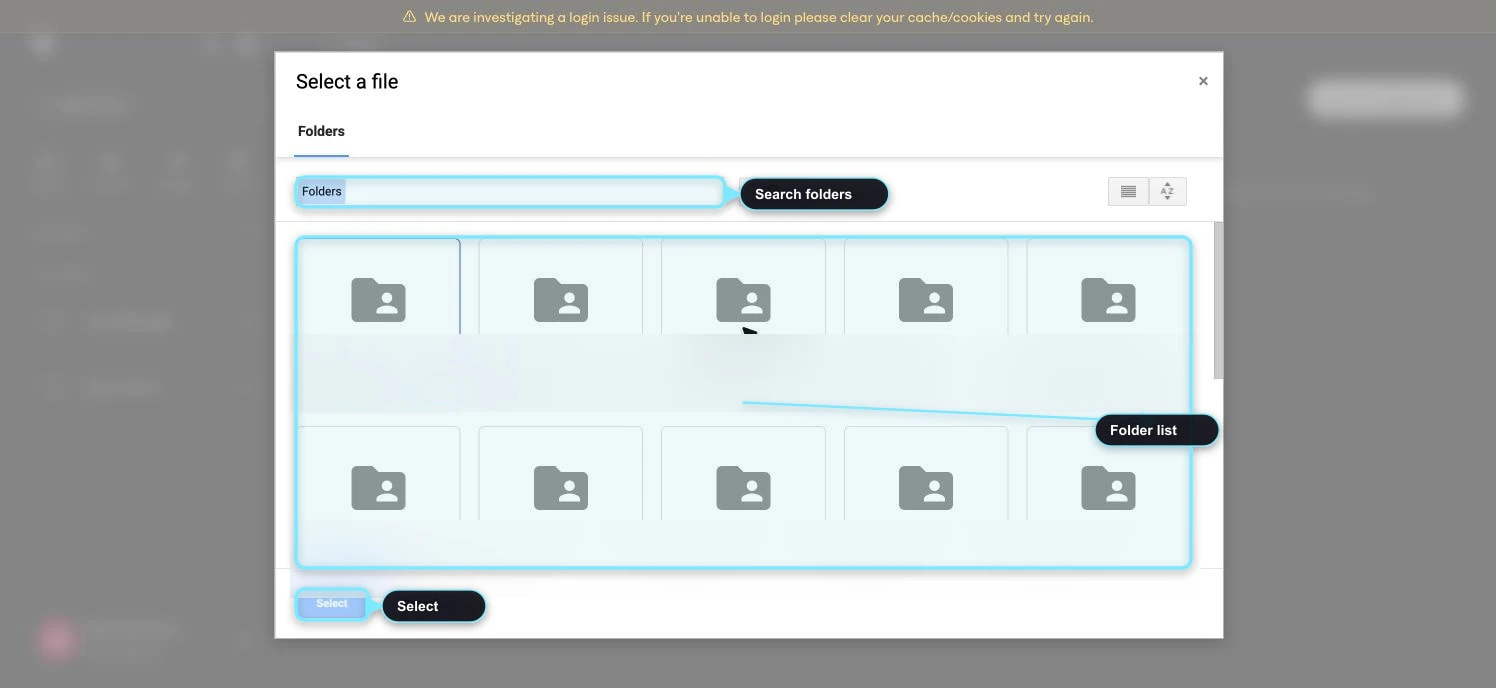
If the correct Google account is already connected, click Pick a folder. If the wrong account is connected, choose Use a different Google account. When the Google Drive picker opens, search or browse for the folder, select the correct folder, then click Select.
12 Drive Picker
Connect the folder that contains the approved source material. Do not connect a broad Drive folder if it includes drafts, private files, outdated material, or unrelated documents.

YouTube channel source

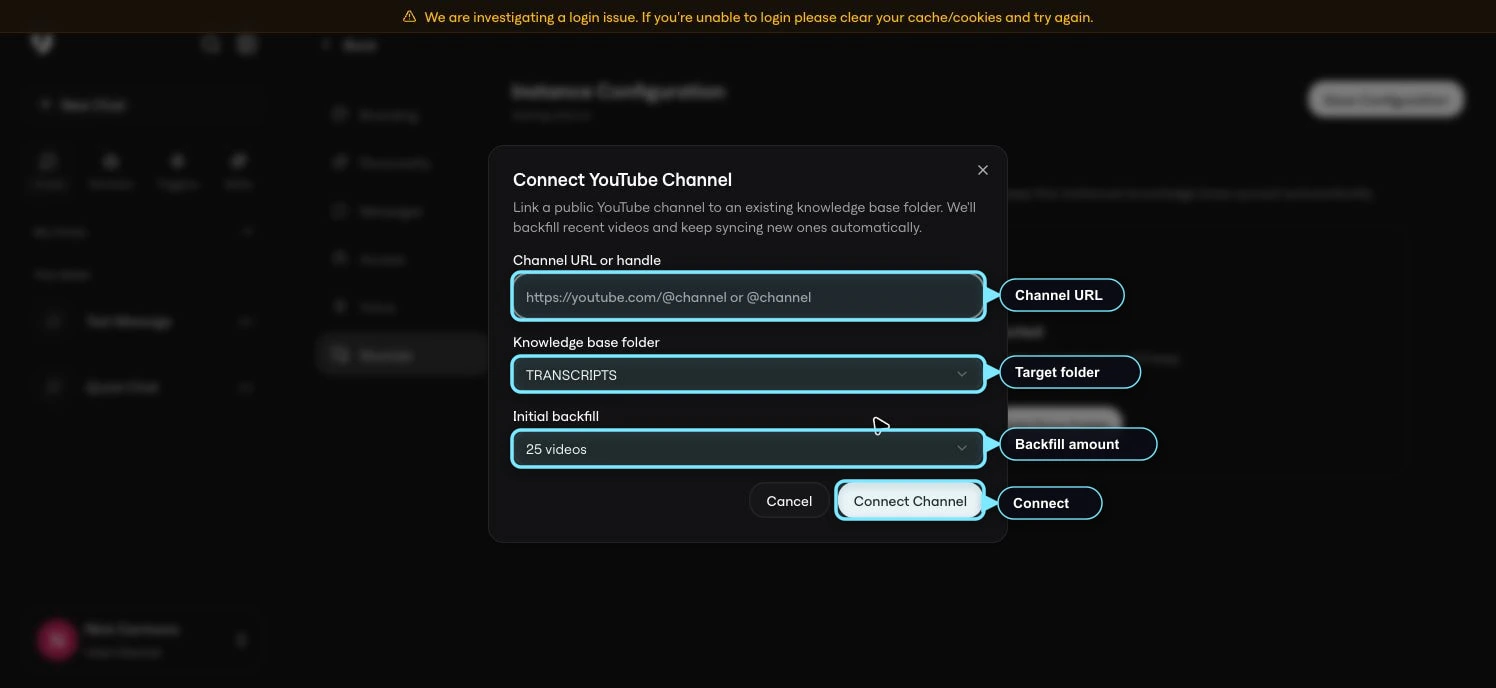
Click Connect YouTube when you want to connect an ongoing YouTube channel.
13 Youtube Connect Modal
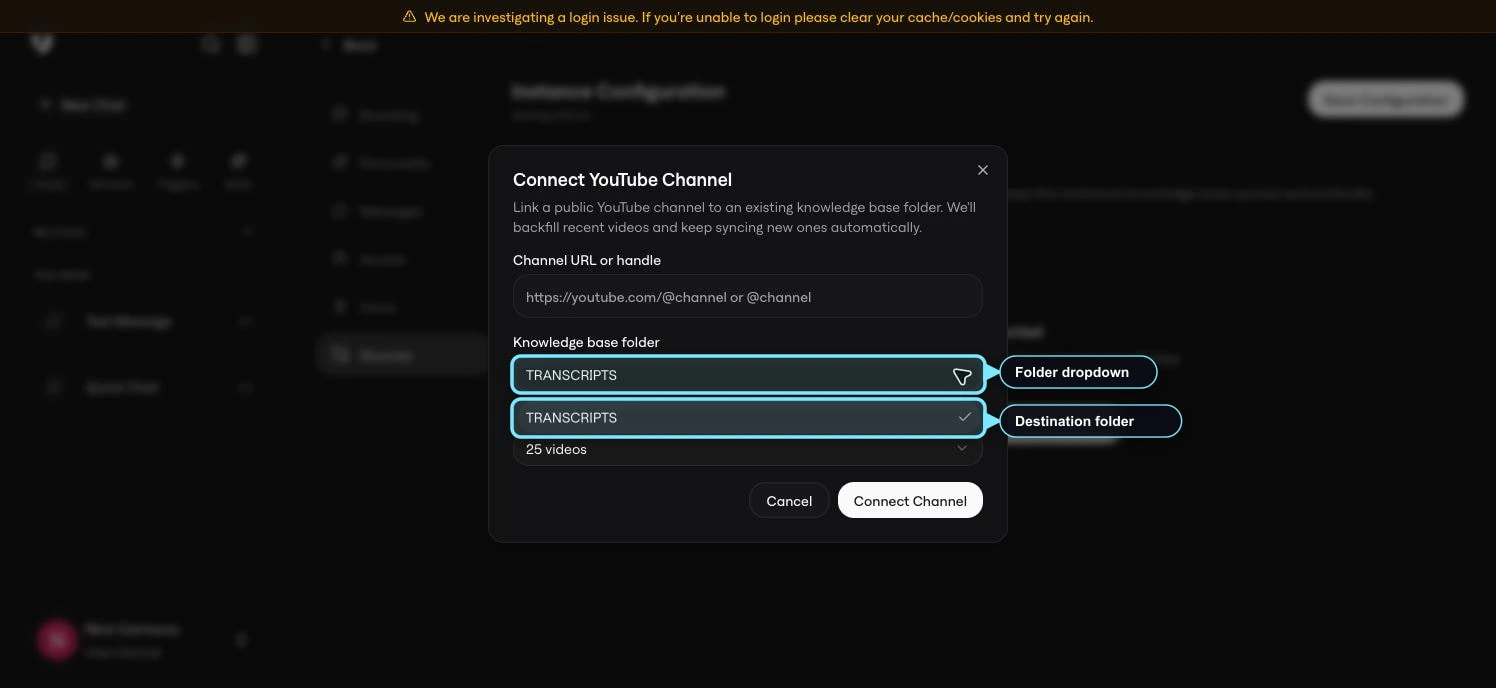
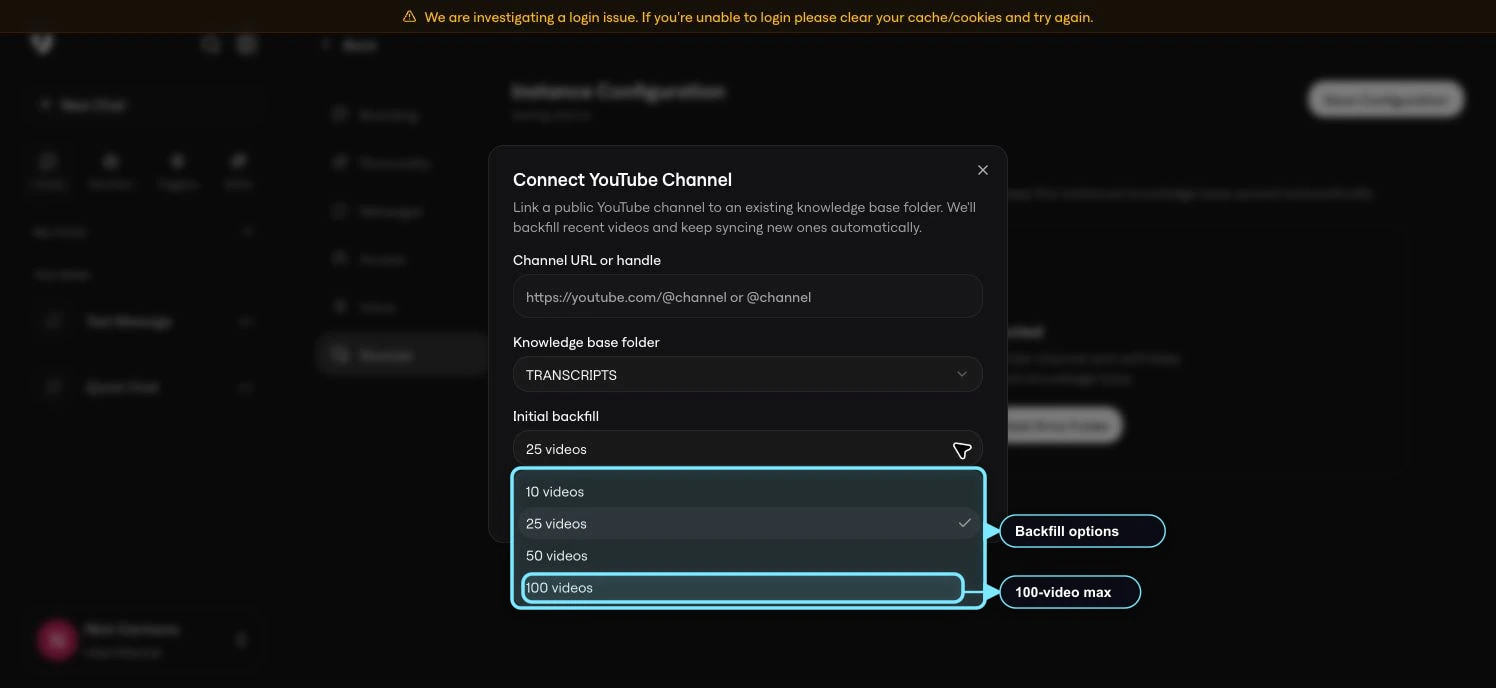
Enter the public channel URL or handle, choose the destination Knowledge Base folder, choose the initial backfill amount, then click Connect Channel. Use a smaller backfill when you only need recent videos. Use the larger backfill only up to the current 100-video source limit. For anything beyond 100 videos, transcribe the extra videos and bring the transcripts in through Bulk Import or approved knowledge documents.
14 Youtube Backfill Options
If there are multiple knowledge folders, choose the folder where the videos should live.
15 Youtube Folder Options
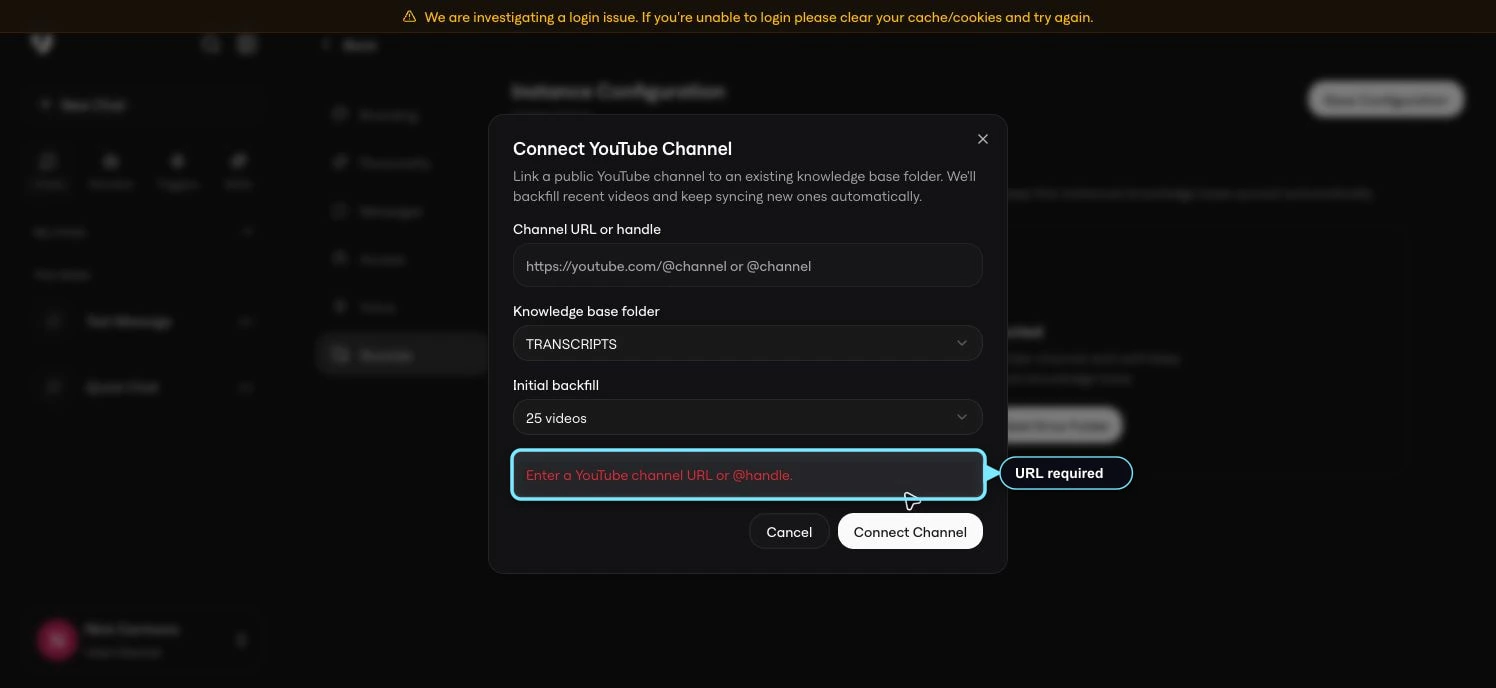
If the URL is blank or not a channel URL/handle, the modal shows a validation message. Fix the URL before connecting.
16 Youtube Url Validation

Review after upload or sync

After adding material, review the folder before moving on.
  • Expand the folder and confirm the files appear.
  • Check that files are directly inside the selected folder, not buried inside nested folders.
  • Review summaries when uploaded materials need clearer context.
  • Open a normal chat and ask the AI a few real member-style questions to confirm the material is being used correctly.

Decide how knowledge stays current

The Knowledge Base is not a one-time upload. Assign ownership for the recurring work so the instance keeps improving after launch. Decide who owns:
  • Adding new approved materials.
  • Removing or replacing outdated materials.
  • Reviewing folder organization.
  • Setting content priority on folders.
  • Editing summaries when uploaded materials need clearer context.
  • Deciding when a knowledge file should become a Skill.
  • Checking whether member questions reveal gaps in the Knowledge Base.
  • Escalating source connection issues back to Utari.
During setup, the owner or assigned team member should organize source material in Drive, confirm which connected sources are approved, and keep refining the instance based on what members ask.

What to avoid

Do not upload a messy folder just because it is available. The AI is only as useful as the material it can reference. Do not mix final materials with drafts unless drafts are intentionally part of the answer source. Do not upload old pricing, outdated offers, conflicting drafts, private internal notes, or anything the AI should not answer from. Do not paste restricted Google Doc URLs. If a Google Doc is added by URL, it should be shared as Anyone with the link can view. Do not use Bulk Import as a substitute for organization. Pick the folder first, then upload. Do not rely on nested folder structures. Keep the structure as Folder -> File. When using YouTube or Google Drive sources, make sure the source is the correct account, channel, folder, or document before connecting it. When converting knowledge into a Skill, make sure the source is actually a repeatable operating instruction. Keep ordinary reference material as knowledge.

Quick check

You are ready to move on when you can answer:
  • Did you choose the right source flow: Add Knowledge, Bulk Import, or Sources?
  • Where do you add one file, note, Google Doc, or YouTube video?
  • If adding a Google Doc by URL, is it shared as Anyone with the link can view?
  • Where do you import multiple files or URLs at once?
  • If using Bulk Import, did you choose a target folder first?
  • What is the 50-URL Bulk Import limit, and how do you batch more than 50 links?
  • Are uploaded files placed directly inside the selected folder instead of nested inside subfolders?
  • Where do you connect YouTube or a Drive folder as a source?
  • What should you do when a YouTube source has more than 100 videos?
  • Where do you test whether the uploaded knowledge is being used correctly?
  • Where do you set content priority for a folder?
  • When should a knowledge file be converted into a Skill?
  • Are Skills only being created from individual files that should become repeatable instructions?
  • Who on your team decides what material is approved for the AI to use?
  • How will your team keep the Knowledge Base current after launch?

Next guide

Continue to Voice, Channels, and Integrations when you are ready to configure voice, voice calls, connected apps, and member-facing channels.